Environment: Moodle LMS on Webuzo | Exim 4.98 | PHP CLI | Ubuntu Server
Symptoms: Moodle UI reports “Your site couldn’t communicate with your mail server” yet the website is fully accessible.
The Problem
When running Moodle on a shared or VPS hosting environment like Webuzo, SMTP email often works via browser but fails when triggered through the admin UI or CLI. This guide walks through the exact steps used to diagnose and fix the issue.
Step 1: Set Up the Moodle CLI Cron (Prerequisite)
Before troubleshooting mail, ensure your Moodle cron is running correctly via CLI — not just the web-based cron.
Add the cron job in Webuzo under your system user:
| Field | Value |
|---|---|
| Minute | * |
| Hour | * |
| Day | * |
| Month | * |
| Weekday | * |
| Command | /usr/bin/php /home/cpaneluser/lms.example.com/admin/cli/cron.php >/dev/null 2>&1 |
Replace
cpaneluserwith your actual Webuzo username andlms.example.comwith your Moodle directory.
Verify it works:
sudo -u cpaneluser /usr/bin/php /home/cpaneluser/lms.example.com/admin/cli/cron.php
Expected output:
Server Time: Mon, 20 Apr 2026 22:45:07 +0300
Ran 0 adhoc tasks found at Mon, 20 Apr 2026 22:45:07 +0300
Cron run completed correctly
Note: Moodle’s cron runs continuously for 180 seconds polling for tasks — this is normal behaviour.
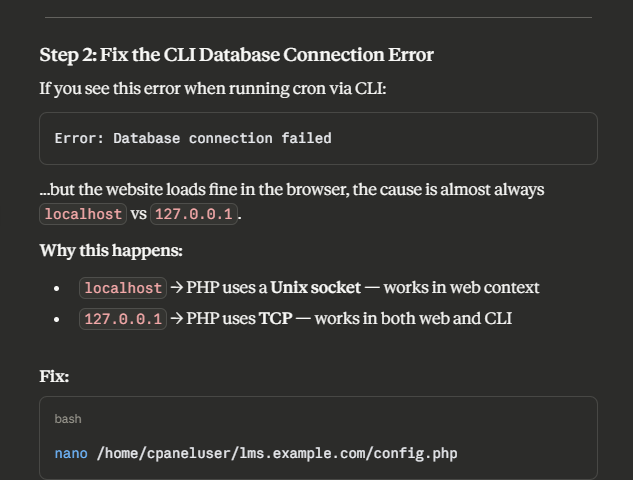
Step 2: Fix the CLI Database Connection Error
If you see this error when running cron via CLI:
Error: Database connection failed
…but the website loads fine in the browser, the cause is almost always localhost vs 127.0.0.1.
Why this happens:
localhost→ PHP uses a Unix socket — works in web context127.0.0.1→ PHP uses TCP — works in both web and CLI
Fix:
nano /home/cpaneluser/lms.example.com/config.php
Change:
$CFG->dbhost = 'localhost';
To:
$CFG->dbhost = '127.0.0.1';
Or use sed:
sed -i "s/\$CFG->dbhost\s*=\s*'localhost'/\$CFG->dbhost = '127.0.0.1'/" /home/cpaneluser/lms.example.com/config.php
Step 3: Configure SMTP via CLI
Set all SMTP settings using Moodle’s config CLI tool:
sudo -u cpaneluser /usr/bin/php /home/cpaneluser/lms.example.com/admin/cli/cfg.php --name=smtphosts --set=mail.example.com
sudo -u cpaneluser /usr/bin/php /home/cpaneluser/lms.example.com/admin/cli/cfg.php --name=smtpport --set=587
sudo -u cpaneluser /usr/bin/php /home/cpaneluser/lms.example.com/admin/cli/cfg.php --name=smtpsecure --set=tls
sudo -u cpaneluser /usr/bin/php /home/cpaneluser/lms.example.com/admin/cli/cfg.php --name=smtpauthtype --set=LOGIN
sudo -u cpaneluser /usr/bin/php /home/cpaneluser/lms.example.com/admin/cli/cfg.php --name=smtpuser --set=noreply@example.com
sudo -u cpaneluser /usr/bin/php /home/cpaneluser/lms.example.com/admin/cli/cfg.php --name=smtppass --set=YourSMTPPassword
sudo -u cpaneluser /usr/bin/php /home/cpaneluser/lms.example.com/admin/cli/cfg.php --name=noreplyaddress --set=noreply@example.com
Common port/security combinations:
| Port | Security | smtpsecure value |
|---|---|---|
| 465 | SSL | ssl |
| 587 | TLS/STARTTLS | tls |
| 25 | None | (empty) |
Step 4: Identify the Correct SMTP Hostname
Don’t assume your mail hostname — test all possibilities. Replace the hostnames below with your own:
cat > /tmp/testports.php << 'EOF'
<?php
$hosts = ['mail.example.com', 'webmail.example.com', 'smtp.example.com'];
$ports = [465, 587, 25];

foreach ($hosts as $host) {
    foreach ($ports as $port) {
        $prefix = $port == 465 ? 'ssl://' : '';
        $conn = @stream_socket_client($prefix.$host.':'.$port, $errno, $errstr, 5);
        $status = $conn ? '✅ OPEN' : '❌ FAILED ('.$errstr.')';
        echo "$host:$port => $status\n";
        if ($conn) fclose($conn);
    }
}
EOF
php /tmp/testports.php
Sample output:
mail.example.com:465    => ✅ OPEN
mail.example.com:587    => ✅ OPEN
mail.example.com:25     => ✅ OPEN
webmail.example.com:465 => ❌ FAILED
webmail.example.com:587 => ✅ OPEN
Use the hostname with the most open ports and a valid SSL cert. Port 587 with TLS is the recommended choice.
Also check your MX record:
dig MX example.com +short
Tip: The SSL certificate CN must match the hostname you use in Moodle’s SMTP config, otherwise the TLS handshake will fail even if the port is open.
Step 5: Test Raw SMTP Authentication
Before blaming Moodle, verify credentials work at the raw SMTP level:
cat > /tmp/testsmtp.php << 'EOF'
<?php
$host = 'mail.example.com';
$port = 587;
$user = 'noreply@example.com';
$pass = 'YourSMTPPassword';

$conn = stream_socket_client('tcp://'.$host.':'.$port, $errno, $errstr, 10);
if (!$conn) { die('Connection failed: '.$errstr."\n"); }

function read($conn) {
    $out = '';
    while ($line = fgets($conn)) {
        $out .= $line;
        if (preg_match('/^\d{3} /', $line)) break;
    }
    return $out;
}

echo "S: ".read($conn);
fputs($conn, "EHLO mail.example.com\r\n");         echo "EHLO: ".read($conn);
fputs($conn, "STARTTLS\r\n");                       echo "STARTTLS: ".read($conn);
stream_socket_enable_crypto($conn, true, STREAM_CRYPTO_METHOD_TLS_CLIENT);
fputs($conn, "EHLO mail.example.com\r\n");          echo "EHLO2: ".read($conn);
fputs($conn, "AUTH LOGIN\r\n");                     echo "AUTH: ".read($conn);
fputs($conn, base64_encode($user)."\r\n");          echo "USER: ".read($conn);
fputs($conn, base64_encode($pass)."\r\n");          echo "PASS: ".read($conn);
fclose($conn);
EOF
php /tmp/testsmtp.php
Look for the PASS: line response:
| Response | Meaning |
|---|---|
235 Authentication succeeded |
 Credentials correct Credentials correct |
535 Incorrect authentication |
 Wrong password Wrong password |
534 |
2FA / App password required |
Tip: Always save scripts to a file rather than running inline — bash interprets
!in passwords as history expansion and throwsbash: event not found.
Step 6: Test with Moodle’s Own PHPMailer
Once raw SMTP works, test using Moodle’s bundled PHPMailer library:
cat > /tmp/testmoodle_smtp.php << 'EOF'
<?php
define('CLI_SCRIPT', true);
require '/home/cpaneluser/lms.example.com/config.php';
require '/home/cpaneluser/lms.example.com/lib/phpmailer/src/PHPMailer.php';
require '/home/cpaneluser/lms.example.com/lib/phpmailer/src/SMTP.php';
require '/home/cpaneluser/lms.example.com/lib/phpmailer/src/Exception.php';

use PHPMailer\PHPMailer\PHPMailer;
use PHPMailer\PHPMailer\SMTP;

$mail = new PHPMailer(true);
$mail->SMTPDebug  = SMTP::DEBUG_SERVER;
$mail->isSMTP();
$mail->Host       = 'mail.example.com';
$mail->SMTPAuth   = true;
$mail->Username   = 'noreply@example.com';
$mail->Password   = 'YourSMTPPassword';
$mail->SMTPSecure = PHPMailer::ENCRYPTION_STARTTLS;
$mail->Port       = 587;

$mail->setFrom('noreply@example.com', 'Moodle LMS');
$mail->addAddress('admin@example.com');
$mail->Subject = 'Moodle SMTP Test';
$mail->Body    = 'Test email from Moodle CLI';

try {
    $mail->send();
    echo "Email sent successfully!\n";
} catch (Exception $e) {
    echo "Error: {$mail->ErrorInfo}\n";
}
EOF
sudo -u cpaneluser /usr/bin/php /tmp/testmoodle_smtp.php
A successful run looks like:
...
SERVER -> CLIENT: 235 Authentication succeeded
...
SERVER -> CLIENT: 250 OK id=xxxxxxxxxxxxxxxxxxxx
Email sent successfully!
Step 7: Test Using Moodle’s Core email_to_user()
This is the exact function the Moodle admin UI test uses. If this works, the UI test will work:
cat > /tmp/testmoodle_debug.php << 'EOF'
<?php
define('CLI_SCRIPT', true);
require '/home/cpaneluser/lms.example.com/config.php';

$CFG->debugsmtp    = true;
$CFG->debug        = 32767;
$CFG->debugdisplay = 1;

$user            = core_user::get_support_user();
$user->email     = 'admin@example.com';
$user->firstname = 'Admin';
$user->lastname  = 'User';

$result = email_to_user(
    $user, $user,
    'Test from Moodle Debug',
    'This is a debug test'
);

echo $result ? "SUCCESS\n" : "FAILED\n";
EOF
sudo -u cpaneluser /usr/bin/php /tmp/testmoodle_debug.php 2>&1
Step 8: Purge Caches and Final Verification
After all settings are confirmed, purge Moodle’s cache:
sudo -u cpaneluser /usr/bin/php /home/cpaneluser/lms.example.com/admin/cli/purge_caches.php
Verify all settings are saved correctly:
sudo -u cpaneluser /usr/bin/php /home/cpaneluser/lms.example.com/admin/cli/cfg.php --name=smtphosts
sudo -u cpaneluser /usr/bin/php /home/cpaneluser/lms.example.com/admin/cli/cfg.php --name=smtpport
sudo -u cpaneluser /usr/bin/php /home/cpaneluser/lms.example.com/admin/cli/cfg.php --name=smtpsecure
sudo -u cpaneluser /usr/bin/php /home/cpaneluser/lms.example.com/admin/cli/cfg.php --name=smtpauthtype
sudo -u cpaneluser /usr/bin/php /home/cpaneluser/lms.example.com/admin/cli/cfg.php --name=smtpuser
sudo -u cpaneluser /usr/bin/php /home/cpaneluser/lms.example.com/admin/cli/cfg.php --name=noreplyaddress
Expected output:
mail.example.com
587
tls
LOGIN
noreply@example.com
noreply@example.com
Final Working Configuration
| Setting | Value |
|---|---|
| SMTP Host | mail.example.com |
| SMTP Port | 587 |
| Security | TLS |
| Auth Type | LOGIN |
| Username | noreply@example.com |
| No-reply Address | noreply@example.com |
Troubleshooting Quick Reference
| Symptom | Cause | Fix |
|---|---|---|
| CLI cron: DB connection failed | localhost uses Unix socket, not TCP |
Change dbhost to 127.0.0.1 in config.php |
| SMTP port scan all FAILED | Firewall blocking outbound mail ports | Open ports 25, 587, 465 in server firewall |
235 but Moodle UI still fails |
Stale cache | Run purge_caches.php |
535 Incorrect authentication |
Wrong password | Reset email account password |
bash: event not found |
! in password breaks bash inline scripts |
Always write PHP test scripts to a file |
send_test_email.php not found |
Older Moodle version | Use email_to_user() method instead |
| SSL cert mismatch | Hostname doesn’t match certificate CN | Use the hostname that matches the SSL cert |
Guide based on a real troubleshooting session on Moodle 4.x running on Webuzo with Exim 4.98.2 and PHP 8.x.