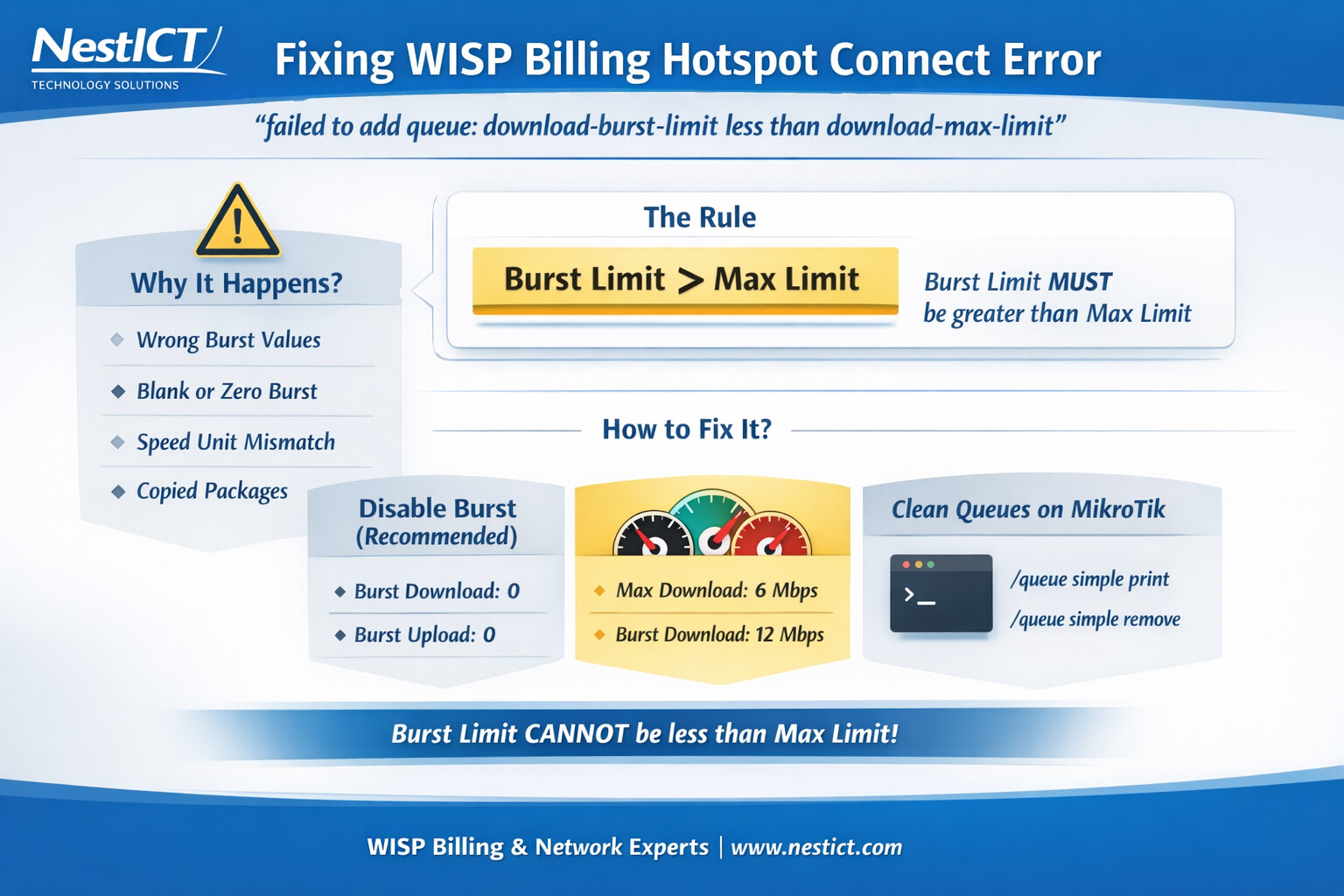
Fixing WISP Billing Hotspot Connect Error
“failed to add queue: download-burst-limit less than download-max-limit”
In WISP environments, nothing frustrates users more than a successful login followed by no internet access. One common MikroTik hotspot error that causes this exact scenario is:
ACC62585 (172.16.15.159): internal error:
login failed: failed to add queue:
download-burst-limit less than download-max-limit
This blog explains what the error means, why it happens, and how to fix it permanently.
Understanding the Error
MikroTik enforces strict queue rules when creating bandwidth limits for users. The error occurs when the system tries to create a queue where:
Burst Limit is less than or equal to Max Limit
MikroTik does not allow this configuration, so it rejects the queue. When the queue fails, the hotspot login process also fails.
The golden rule:
Burst Limit MUST be greater than Max Limit
Why This Error Happens in WISP Billing Systems
This issue is common when using automated billing platforms such as:
- UISP
- WISECP
- Splynx
- Radius Manager
- Custom RADIUS or API-based provisioning systems
Typical causes include:
1. Incorrect burst speed configuration
Burst values are set lower than the assigned package speed.
2. Burst values left blank or set to zero
Some billing systems interpret empty fields as 0, which breaks MikroTik rules.
3. Speed unit mismatch
Mbps vs Kbps conversion errors during profile creation.
4. Reused or cloned packages
Old packages copied without adjusting burst parameters.
Why Hotspot Login Fails Completely
During hotspot authentication, MikroTik performs these steps:
- Authenticate user credentials
- Create bandwidth queue
- Assign IP and allow traffic
If step 2 fails, the router terminates the login session. No queue means no internet, even if the username and password are correct.
How to Fix the Error
Option 1: Disable Burst Speed (Recommended)
For most hotspot deployments, burst speeds are unnecessary.
In your billing system or RADIUS profile:
- Disable Burst Download
- Disable Burst Upload
- Or set burst values to
0
This ensures queues are created cleanly every time.
 Best for public hotspots
Reduces CPU load
Eliminates queue errors
Best for public hotspots
Reduces CPU load
Eliminates queue errors
Option 2: Configure Burst Speeds Correctly
If you want to keep burst functionality, follow this structure:
Example Download Settings
Max Download Speed:      6 Mbps
Burst Download Speed:  12 Mbps
Burst Threshold:        4 Mbps
Burst Time:            10 seconds
Example Upload Settings
Max Upload Speed:       2 Mbps
Burst Upload Speed:     4 Mbps
Burst is higher than max
Threshold is lower than max
MikroTik accepts the queue
Option 3: Clean Broken Queues on MikroTik
Sometimes failed queues remain partially created.
Check queues:
/queue simple print
Remove the affected queue:
/queue simple remove [find name~"ACC62585"]
After cleanup, reconnect the user.
Best Practices for WISP Operators
To avoid this issue entirely:
- Always validate burst values before saving packages
- Keep burst disabled for hotspot users
- Use consistent speed units (Mbps or Kbps, not both)
- Test new packages with one user before rollout
- Monitor RouterOS logs during authentication
Conclusion
The error:
download-burst-limit less than download-max-limit
is not a MikroTik bug. It’s a configuration conflict between your billing system and RouterOS queue rules.
Once burst speeds are corrected or disabled, hotspot logins become stable, predictable, and fast.
Need Help?
If you’re running:
- MikroTik Hotspot or PPPoE
- UISP, WISECP, Splynx, or custom billing
- Multi-router WISP infrastructure
NestICT Infotech can help you design error-free bandwidth profiles and scalable billing integrations 
