Google Transparency Report Google Transparency Report
Google Red Screen Alert: Causes, Risks, and Step-by-Step Remedies
Introduction
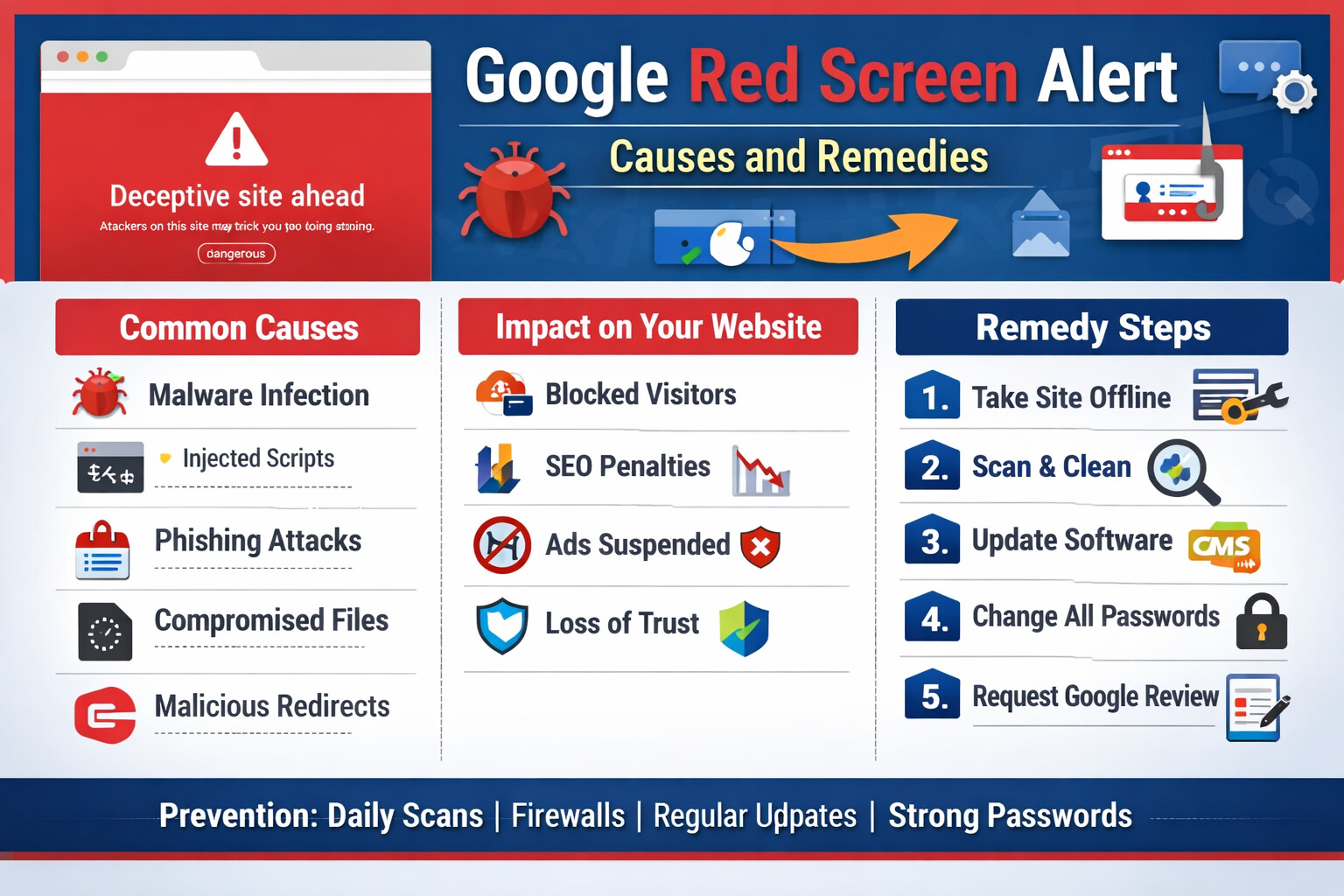
Encountering a Google red screen alert when accessing a website is a serious security warning that indicates the site has been flagged as unsafe. This alert, powered by Google Safe Browsing, is designed to protect users from malware, phishing, and other online threats.
For website owners, this is not merely a warning—it is a critical operational and reputational issue that can result in traffic loss, SEO penalties, customer distrust, and revenue disruption.
This article explains:
- What causes Google red screen alerts
- How they affect websites and users
- Practical, step-by-step remedies
- Long-term prevention strategies
What Is a Google Red Screen Alert?
A Google red screen alert (also called a security interstitial) is a browser warning shown before a webpage loads. Common messages include:
- “Deceptive site ahead”
- “This site may harm your computer”
- “Phishing attack ahead”
- “Malware detected”
These warnings are enforced across browsers such as Google Chrome, Firefox, Microsoft Edge, and Safari, all of which rely on Google Safe Browsing threat intelligence.
Primary Causes of Google Red Screen Alerts
1. Malware Infection
This is the most common cause.
Typical sources:
- Injected JavaScript or PHP backdoors
- Malicious iframes loading external payloads
- Drive-by download scripts
- Crypto-mining malware
How it happens:
- Outdated CMS or frameworks
- Vulnerable plugins or extensions
- Weak server or FTP credentials
2. Phishing and Social Engineering
Google flags websites that attempt to deceive users into revealing sensitive information.
Examples:
- Fake login pages (email, banking, social media)
- Impersonation of trusted brands
- Fraudulent M-Pesa, PayPal, or Google forms
Even a single phishing page on a subdirectory can flag the entire domain.
3. Compromised Website Files
Attackers often modify:
index.php.htaccesswp-config.php- Theme or plugin core files
- Scheduled cron jobs
These modifications may be hidden or obfuscated, making detection difficult without proper scanning.
4. Harmful Redirects
Malicious redirects silently forward users to scam or spam sites.
Common patterns:
- Redirects only on mobile devices
- Redirects based on IP or country
- JavaScript-based delayed redirects
Google treats these as high-risk threats.
5. Third-Party Script Abuse
Even if your site is clean, loading scripts from infected third-party sources (ads, analytics, widgets) can trigger warnings.
Impact of a Google Red Screen Alert
A flagged website faces immediate and long-term consequences:
- Visitors are blocked before page load
- Search rankings collapse
- Google may de-index pages
- Advertising accounts can be suspended
- Brand trust is severely damaged
- Conversion rates drop to near zero
For e-commerce, SaaS, or institutional websites, this can result in direct financial losses.
Step-by-Step Remedy Process
Step 1: Confirm the Alert
Verify the issue using:
- Google Transparency Report
- Google Search Console → Security Issues
Identify whether the alert is due to malware, phishing, or deceptive content.
Step 2: Take the Website Offline
Immediately:
- Enable maintenance mode, or
- Restrict access via
.htaccessor firewall
This prevents further harm to users and reduces Google’s negative trust scoring.
Step 3: Full Malware Scan and Cleanup
File System Cleanup
- Compare core CMS files with official versions
- Remove unknown or recently modified files
- Inspect
/uploads,/tmp, and/cachedirectories - Check
.htaccessfor malicious rewrite rules
Database Cleanup
- Scan posts, pages, and settings for injected scripts
- Remove encoded payloads (base64, eval, gzinflate)
- Check user tables for unauthorized admin accounts
Tools Commonly Used
- Server-level: ClamAV, Maldet, ImunifyAV
- CMS-level: Wordfence, Sucuri, iThemes Security
Step 4: Update and Patch Everything
- Update CMS core
- Update all plugins, modules, and themes
- Upgrade PHP to a supported version
- Apply OS and server patches
Unpatched software is the primary reinfection vector.
Step 5: Reset All Credentials
Change:
- Hosting control panel passwords
- SSH and FTP credentials
- Database users
- CMS admin accounts
- API keys and tokens
Enable strong passwords and two-factor authentication wherever possible.
Step 6: Secure the Server
Implement:
- Web Application Firewall (WAF)
- File integrity monitoring
- Disable PHP execution in upload directories
- Proper file permissions
- Regular automated backups
Step 7: Request Google Review
Once the site is fully cleaned:
-
Log in to Google Search Console
-
Navigate to Security Issues
-
Click Request Review
-
Clearly explain:
- What caused the issue
- What was fixed
- What security measures were added
Google typically responds within 24–72 hours.
Preventing Future Google Red Screen Alerts
- Perform daily malware scans
- Keep all software updated
- Use a reputable WAF (Cloudflare, Imunify360)
- Limit admin access
- Remove unused plugins or modules
- Monitor logs for suspicious activity
- Store backups off-site
Prevention is significantly cheaper than recovery.
Conclusion
A Google red screen alert is not a random event—it is a clear signal of a security failure that must be addressed immediately. With a structured cleanup process, proper hardening, and ongoing monitoring, affected websites can regain trust and avoid future incidents.
For businesses, hosting providers, and developers, treating security as an ongoing operational responsibility—not a one-time task—is essential in today’s threat landscape.
Google Transparency Report Google Transparency Report