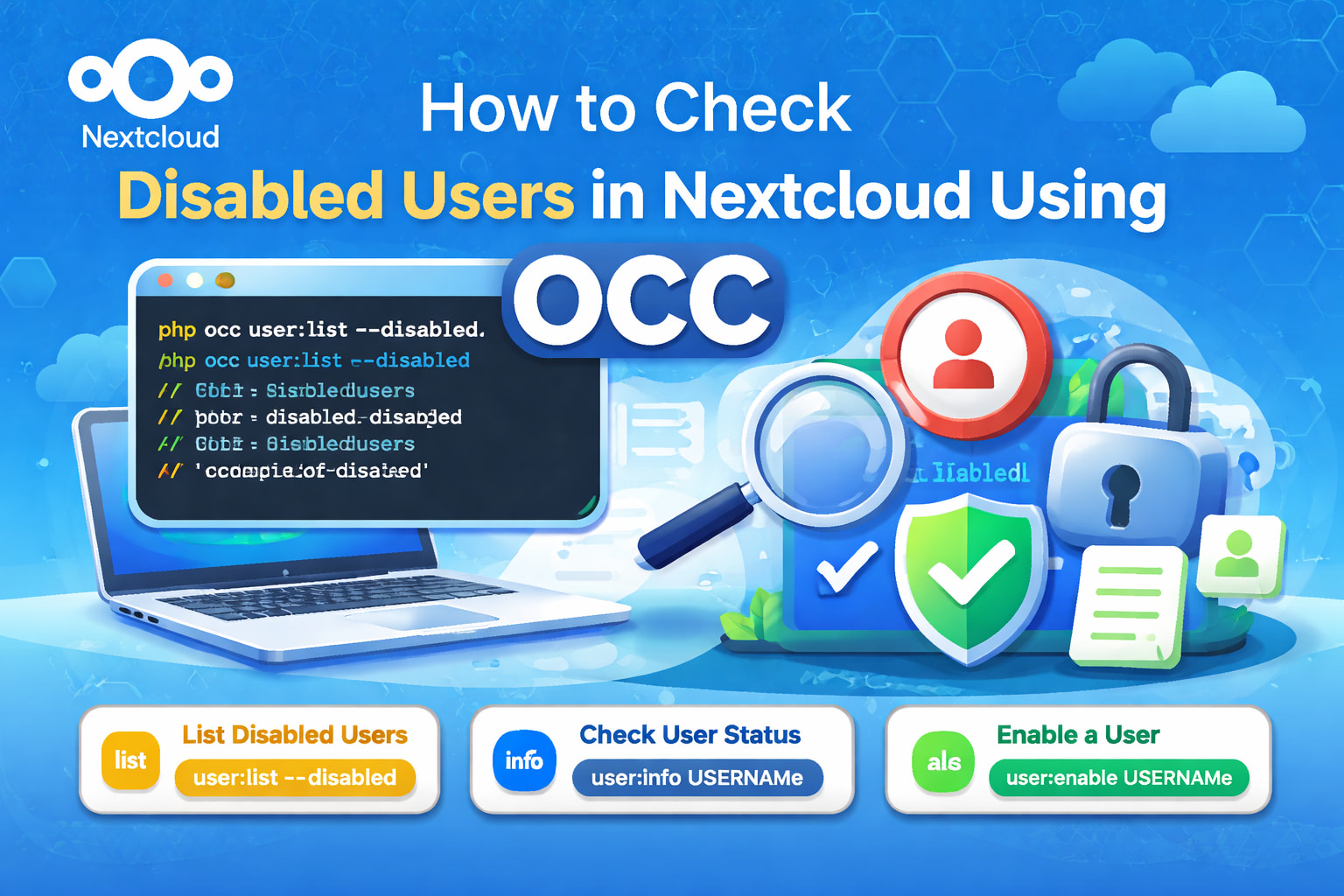
How to Check Disabled Users in Nextcloud Using OCC
Managing users in Nextcloud is usually smooth sailing, until someone suddenly can’t log in and swears they “did nothing.” In many cases, the account is simply disabled. Fortunately, Nextcloud provides a powerful command-line tool called OCC that lets administrators quickly identify and fix this.
This guide shows you how to check disabled users in Nextcloud using OCC, verify individual accounts, and safely re-enable them.
What Is OCC and Why It Matters
OCC (OwnCloud Console) is Nextcloud’s command-line control center. It allows administrators to manage users, apps, maintenance tasks, and system health directly from the server.
If you manage a production Nextcloud instance, OCC is not optional, it’s essential.
Before You Begin (Important)
Always run occ as the web server user, not plain root.
Common web server users
- Ubuntu / Debian →
www-data - AlmaLinux / Rocky / CentOS →
apache
Navigate to your Nextcloud root directory first:
cd /path/to/nextcloud
Method 1: List Only Disabled Users (Recommended)
This is the fastest and cleanest way to see who’s locked out.
sudo -u www-data php occ user:list --disabled
Example output:
- kevin: KEVIN OWINO OKWERO (disabled)
- john: John Doe (disabled)
If nothing is returned, congratulations  You currently have no disabled users.
Method 2: List All Users and Spot Disabled Ones
If you want the full roster:
sudo -u www-data php occ user:list
Disabled users appear clearly:
- kevin: KEVIN OWINO OKWERO (disabled)
Enabled users show without the (disabled) tag.
Method 3: Check a Specific User (Most Accurate)
When troubleshooting a single login issue, this is the command you want.
sudo -u www-data php occ user:info USERNAME
Example:
sudo -u www-data php occ user:info kevin
Key line to look for:
enabled: false
If it says true, the issue lies elsewhere (password, browser, LDAP, or security apps).
How to Re-Enable a Disabled User
Once you confirm a user is disabled and the backend is Database, re-enabling is instant.
sudo -u www-data php occ user:enable USERNAME
Example:
sudo -u www-data php occ user:enable kevin
You should see:
The specified user is enabled
Why Users Get Disabled in Nextcloud
Accounts don’t disable themselves out of boredom. Common reasons include:
- Too many failed login attempts
- Manual admin action
- Security or brute-force protection apps
- Authentication glitches
- External identity sync issues
You can inspect logs for clues:
tail -f data/nextcloud.log
Important Note About LDAP and External Auth
If user:info shows:
backend: LDAP
Then OCC cannot enable the user. The account must be re-enabled in:
- LDAP
- Active Directory
- SAML provider
Nextcloud only mirrors the external state.
Best Practices for Admins
- Regularly audit disabled users
- Fix PHP memory limits (512M recommended)
- Avoid running
occas plain root - Keep logs enabled for security events
Quick Command Reference
| Task | Command |
|---|---|
| List disabled users | php occ user:list --disabled |
| Check user status | php occ user:info USER |
| Enable user | php occ user:enable USER |
Final Thoughts
Checking disabled users in Nextcloud takes seconds once you know the right OCC commands. Whether you’re running a small team cloud or a large enterprise instance, mastering these basics keeps support tickets low and users happy.