resetting Windows 10 password without using any kind of third-party tool, you just need to insert the installation DVD in your system or any other kind of installation media and follow these steps and you will easily reset your password.
Insert DVD or any other installation media by which you want to install Windows 10 in your system and then restart your computer. While restarting your computer change the boot order of your system and select the correct boot mode. When you select the installation media your boot mode system will restart and you will find a prompted window and it shows press “any key to boot from disk”. Now follow these steps:
Step 1
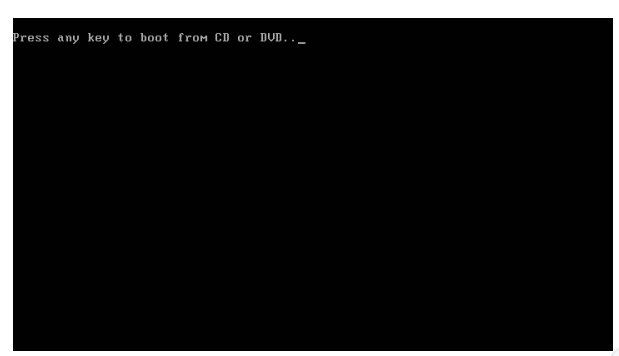
You will see this kind of prompted window “Press any key to boot from disk”. Press ENTER.
Step 2
In the Windows setup, you will find this window. Click on Next.
Step 3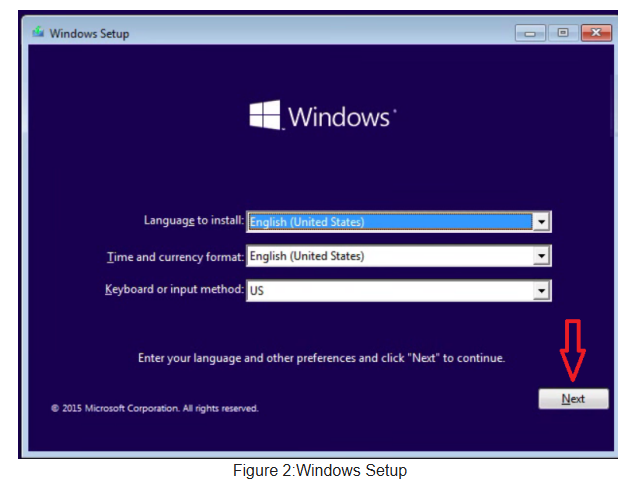
When you click on next you will find the following window. Now click on Repair your computer because we want to reset our password. For installing Windows 10 we have to click on install. So, for now, click on Repair your computer.
Step 4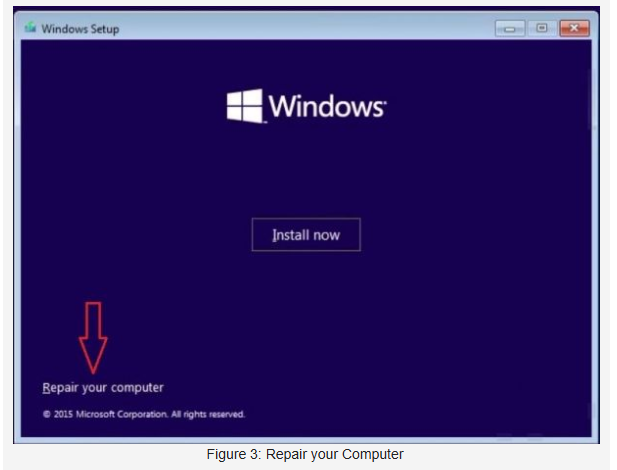
After clicking on Repair your computer you will find the following screen to select an option for you, click on Troubleshoot.
Step 5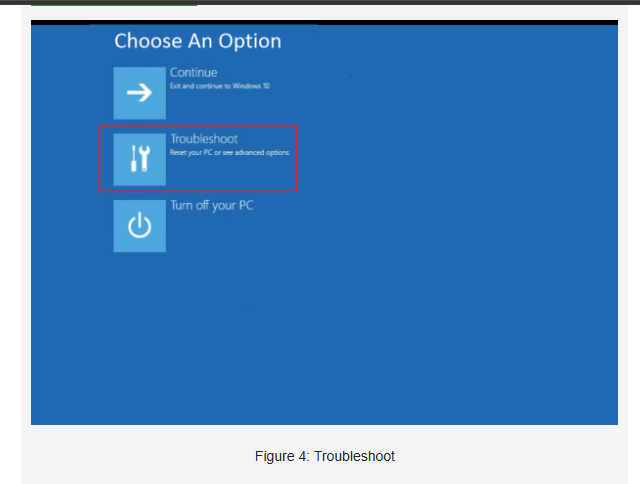
In the troubleshoot option you will find the following two options, click on the Advanced option.
Step 6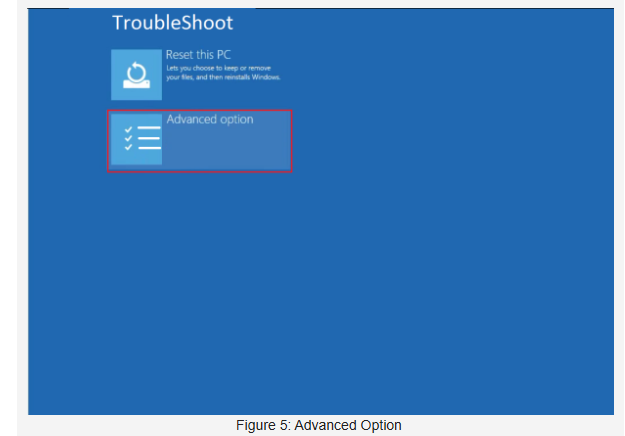
In Advanced options click on Command Prompt.
Step 7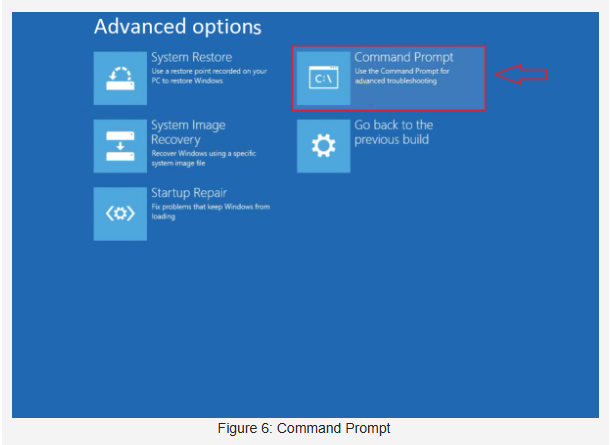
After clicking on Command Prompt, the cmd screen will open. Now check that in which drive you installed windows.
Firstly, get out from all the folders and then enter in c directory type” dir” for checking the files in C Drive.
If you did not install Windows in your C drive, then try the drive where you installed windows, follow these commands for checking that.
Step 8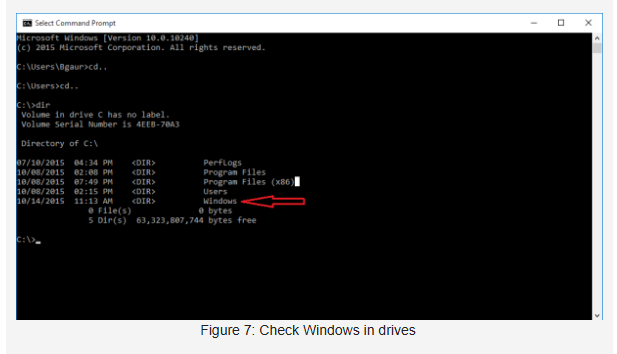
When you will find windows in your C or any other drives then we have to enter in system32 folder in windows, type “cd system32” to enter in the specific folder. Now follow these commands:
- Type “dir osk.exe”: This command file is for On-Screen Keyboard.
- Type “dir cmd.exe”: This command file is for the command prompt.
- Now we will rename the osk file to osk.old and for that type “ren osk.exe osk.exe.old” Press enter.
- Now we will copy and rename the command prompt to the On-Screen Keyboard by typing “copy cmd.exe osk.exe”.
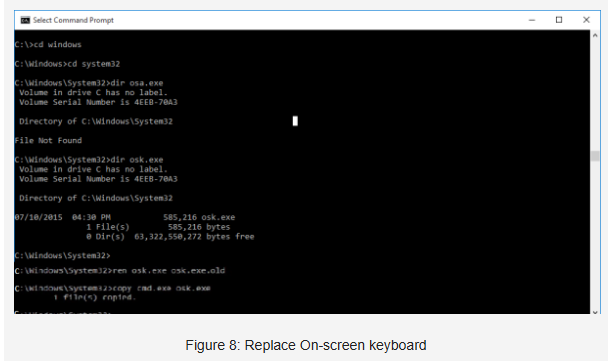
Now reboot your system.
Step 10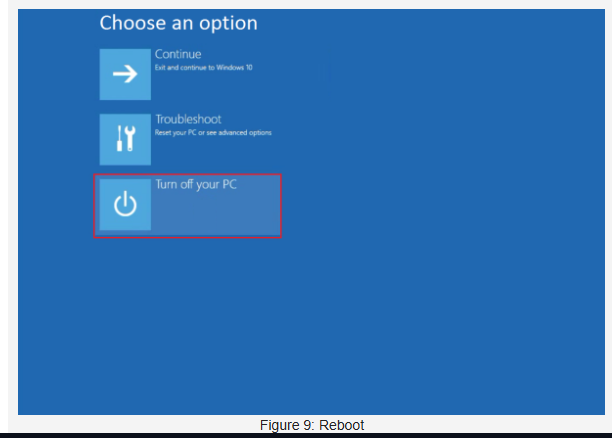
After login, you will find an Ease of Access option on the left of the screen. On clicking there you will find the third option “On-Screen Keyboard”, click on it.
Step 11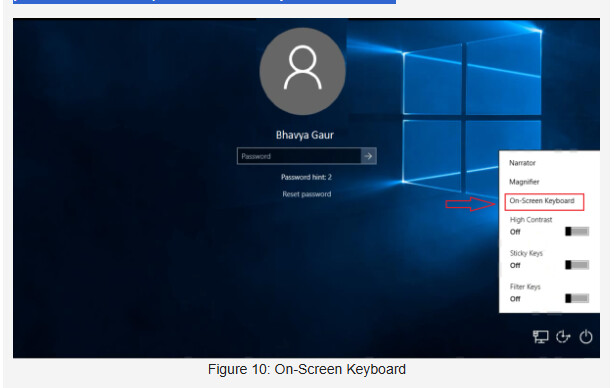
After clicking on ”On-Screen Keyboard” you will see a command prompt open on your screen.
Step 12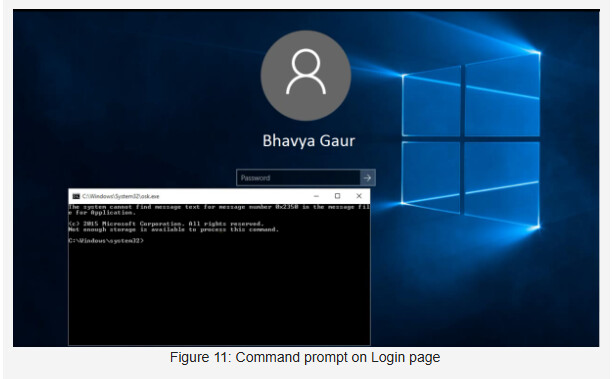
If you want to reset the password for a specific user then type the username else reset the password for admin, for resetting the password type “net user admin *” and hit Enter. Then create a password for your account or just click two times for account reset without setting any password for your system.
Step 13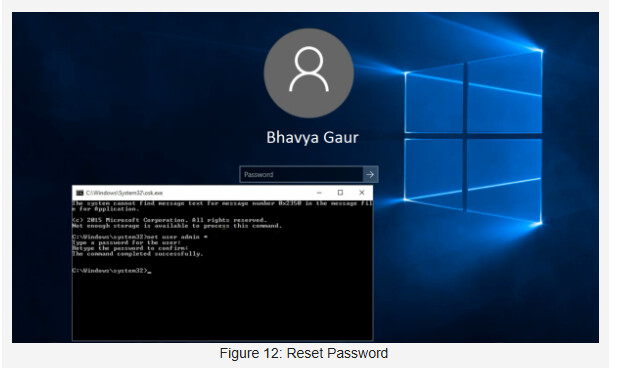
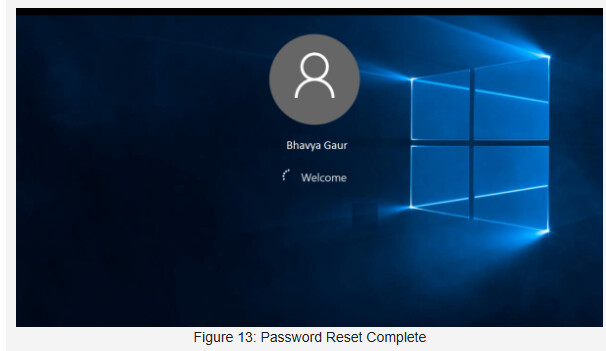
Your password has been reset.