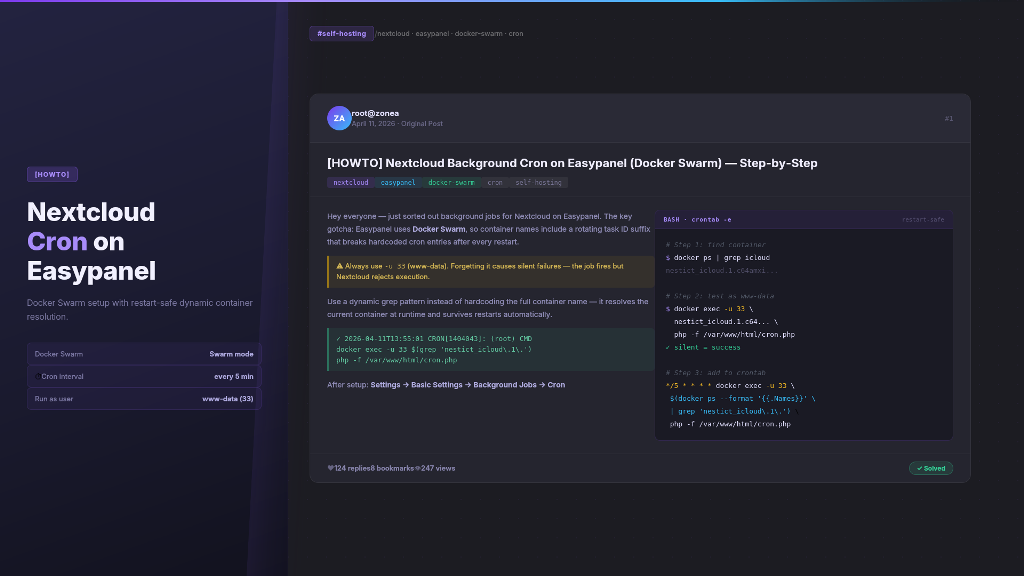
[HOWTO] Nextcloud Background Cron on Easypanel (Docker Swarm) — Step-by-Step
Tags: nextcloud, easypanel, docker, cron, docker-swarm
Hey everyone,
Just sorted out background jobs for my Nextcloud install on Easypanel and wanted to document the full process since I ran into a few gotchas that aren’t covered elsewhere. This should save someone a few hours of head-scratching.
My setup
- Easypanel managing a Docker Swarm stack
- Nextcloud service under project
nestict, service nameicloud - Data volume at
/etc/easypanel/projects/nestict/icloud/volumes/data - Host OS: Ubuntu 24
The problem
Nextcloud’s default background job mode is AJAX — it only runs tasks when users are actively using the app. For things like file indexing, notifications, and cleanup jobs, you need a real cron running every 5 minutes.
Since Easypanel is not cPanel and your app runs inside Docker Swarm containers, you can’t just add a cron the normal way. Here’s how to do it properly.
Step 1 — Find the container
docker ps | grep icloud
Sample output:
bdee9b9ec7e8 nextcloud:latest "/entrypoint.sh apac…" 6 days ago Up 6 days 80/tcp nestict_icloud.1.c64amxi01q8wx9gt4f58yt2jd
Your container name is the last column. Note the .1.c64amxi01q8wx9gt4f58yt2jd at the end — that’s a Swarm task ID and it changes on every restart. Keep this in mind for later.
Step 2 — Test the cron manually
Try running the cron script:
docker exec nestict_icloud.1.c64amxi01q8wx9gt4f58yt2jd php -f /var/www/html/cron.php
Common error:
Console has to be executed with the user that owns the file config/config.php.
Current user id: 0
Owner id of config.php: 33
Fix: pass -u 33 (that’s www-data inside the container):
docker exec -u 33 nestict_icloud.1.c64amxi01q8wx9gt4f58yt2jd php -f /var/www/html/cron.php
Silent output = success. If you get errors here, fix them before proceeding.
Step 3 — Add to system crontab
crontab -e
Add this line:
*/5 * * * * docker exec -u 33 $(docker ps --format '{{.Names}}' | grep 'nestict_icloud\.1\.') php -f /var/www/html/cron.php
 Do NOT hardcode the full container name. The
 $(...) subshell dynamically resolves the current container at runtime. This makes it restart-safe — the task ID suffix in the name changes every time the service restarts, but the grep pattern matches on the stable part.
Verify your crontab:
crontab -l
Step 4 — Enable Cron mode in Nextcloud admin
Go to: Settings → Administration → Basic Settings → Background Jobs
Switch from Ajax to Cron.
Step 5 — Confirm it’s working
Wait 5+ minutes then check:
grep CRON /var/log/syslog | grep icloud
You want to see entries with docker exec -u 33 — not the old form without -u 33 (which would fail silently).
Gotchas I hit
Gotcha 1: Wrong container matched by docker ps -qf
Using docker ps -qf "name=nestict_icloud" returns IDs, but when there are multiple containers with similar names (like a dbgate sidecar), it can return the wrong one or multiple IDs, which breaks the exec command. Use --format '{{.Names}}' with grep instead.
Gotcha 2: Running as root (uid 0)
Forgetting -u 33 makes the cron run but Nextcloud refuses to execute it with the error above. The job will appear in syslog but nothing actually runs. Always use -u 33.
Gotcha 3: Old crontab entries still running
After fixing my command, I still saw the old broken line in syslog. Make sure you fully remove the old entry from crontab and don’t leave duplicates.
Full working crontab (my example)
* * * * * bash /etc/hetrixtools/hetrixtools_agent.sh >> /etc/hetrixtools/hetrixtools_cron.log 2>&1
*/5 * * * * docker exec -u 33 $(docker ps --format '{{.Names}}' | grep 'nestict_icloud\.1\.') php -f /var/www/html/cron.php
Adapt for your own setup
If your Easypanel project or service has a different name, change the grep pattern accordingly:
| Your project/service | Grep pattern |
|---|---|
nestict / icloud |
nestict_icloud\.1\. |
myproject / nextcloud |
myproject_nextcloud\.1\. |
apps / nc |
apps_nc\.1\. |
The pattern is always projectname_servicename\.1\.
Hope this helps someone. Let me know if you run into anything different on your setup — happy to help debug.