Identifying the Drive Running Windows Using Command Prompt (CMD)
When troubleshooting boot issues, disk errors, or multi-drive systems, one of the first questions to answer is simple but critical: Which drive is my Windows operating system actually running on? Windows provides several built-in Command Prompt tools that reveal this information instantly, without third-party software.
This guide walks through reliable CMD methods to identify the active Windows OS drive and understand its role in the boot process.
Why Knowing the Running OS Drive Matters
Knowing the system drive helps when you are:
- Repairing boot errors (BCD, EFI, GRUB conflicts)
- Managing multi-boot systems
- Reinstalling or upgrading Windows
- Running disk checks or cloning drives
- Diagnosing SSD/HDD detection issues
In short, it tells you where Windows lives and breathes.
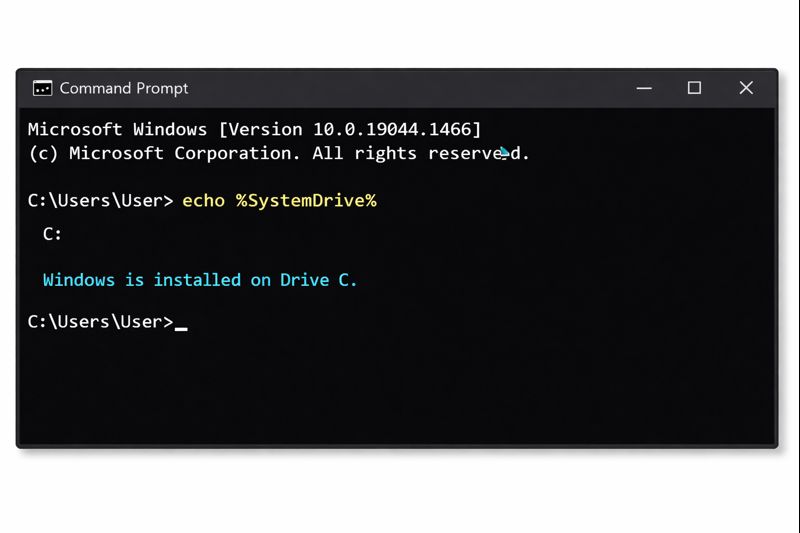
Method 1: Check the System Drive Variable (Fastest)
Windows stores the OS drive letter in an environment variable.
Command:
echo %SystemDrive%
Output:
C:
 This indicates the drive where the Windows directory (
\Windows) is installed.
Method 2: Use WMIC to Query the Operating System
This method directly asks Windows which drive hosts the OS.
Command:
wmic os get systemdrive
Output:
SystemDrive
C:
 Useful for scripts and remote diagnostics.
Method 3: Verify Using Environment Variables
You can list system-related variables and confirm the OS drive.
Command:
set system
Look for:
SystemDrive=C:
SystemRoot=C:\Windows

SystemRoot confirms the exact Windows directory location.
Method 4: Identify the Boot and System Partitions (Advanced)
Sometimes the boot partition and OS partition are different, especially on UEFI systems.
Steps:
diskpart
list volume
You’ll see columns like:
- Boot – where Windows is running from
- System – EFI or bootloader partition
Example:
Volume 0   C   NTFS   Boot
Volume 1       FAT32  System
 Here, Windows runs from C:, while boot files reside on a separate EFI partition.
Type:
exit
to leave DiskPart.
Common Scenarios Explained
 Why Windows Almost Always Uses C:
Historically, Windows assigns C: to the primary OS partition for compatibility and legacy reasons. Even with multiple disks, Windows strongly prefers C:.
Can Windows Run from Another Drive?
Yes, but only if manually installed that way. Tools, updates, and some applications may still assume C: exists.
Summary Table
| Task | Command |
|---|---|
| Show OS drive | echo %SystemDrive% |
| Confirm via WMIC | wmic os get systemdrive |
| Check Windows folder | set system |
| See boot/system partitions | diskpart → list volume |
Final Thoughts
Identifying the running OS drive is like finding the engine room of a ship. Once you know where it is, repairs, upgrades, and diagnostics become safer and smarter.
If you’re troubleshooting boot errors, EFI issues, RAID/AHCI conflicts, or dual-boot systems, this knowledge is essential.