Steps to Save a Word Document as PDF
-
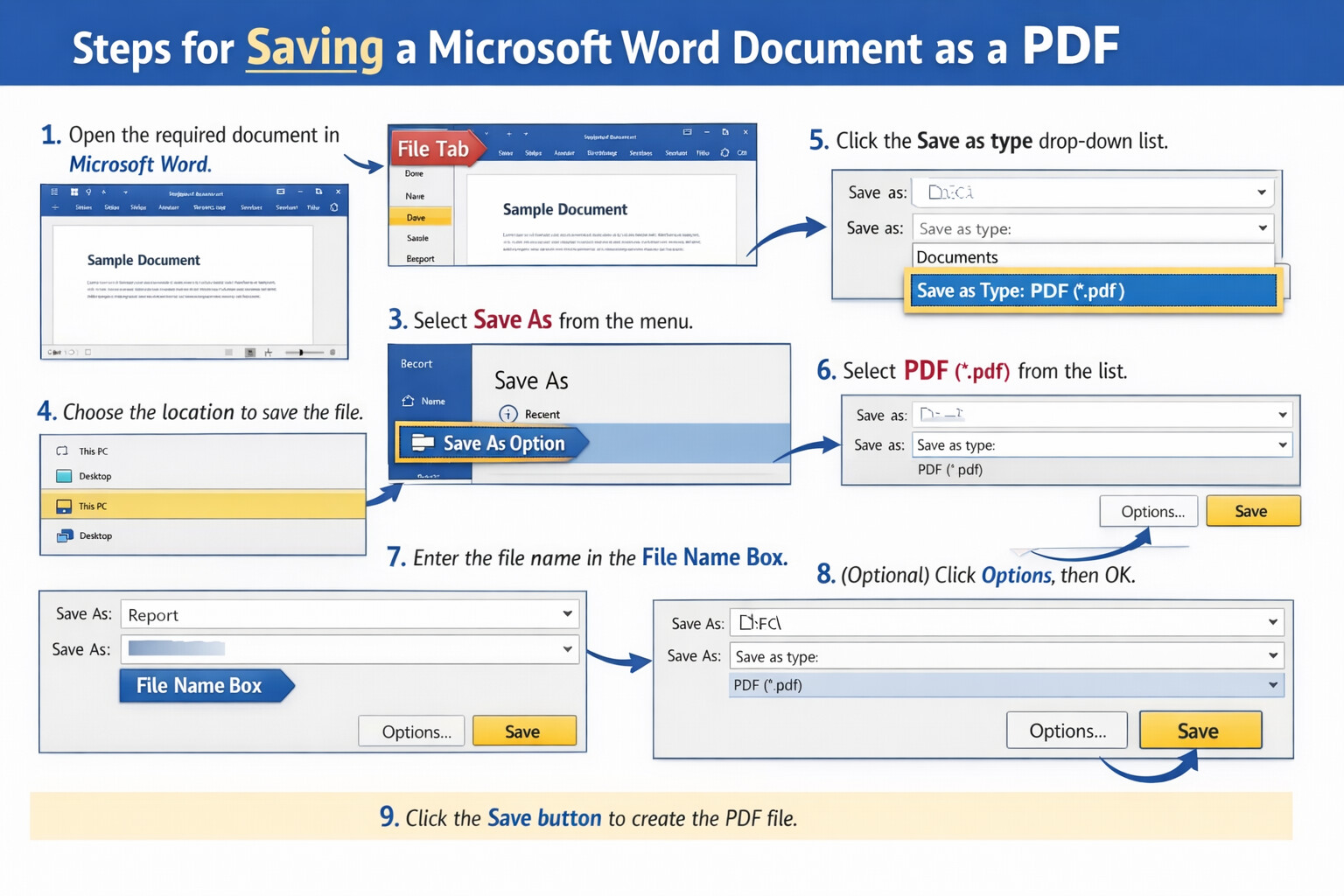
Open your document Launch Microsoft Word and open the document you want to convert.
-
Click on
FileThis is located at the top-left corner of the Word window. -
Select
Save AsChoose where you want to save the file (e.g. This PC, Desktop, or a specific folder). -
Choose the save location Click on the folder where you want the PDF stored.
-
Change the file type to PDF
- Click the “Save as type” dropdown
- Select PDF (*.pdf)
-
Name your file Enter the desired file name.
-
(Optional) Adjust PDF options
- Click Options… if you want to choose pages, optimize for printing, etc.
- Click OK to confirm.
-
Click
SaveWord will create and save the document as a PDF file.
Steps for Saving a Microsoft Word Document as a PDF
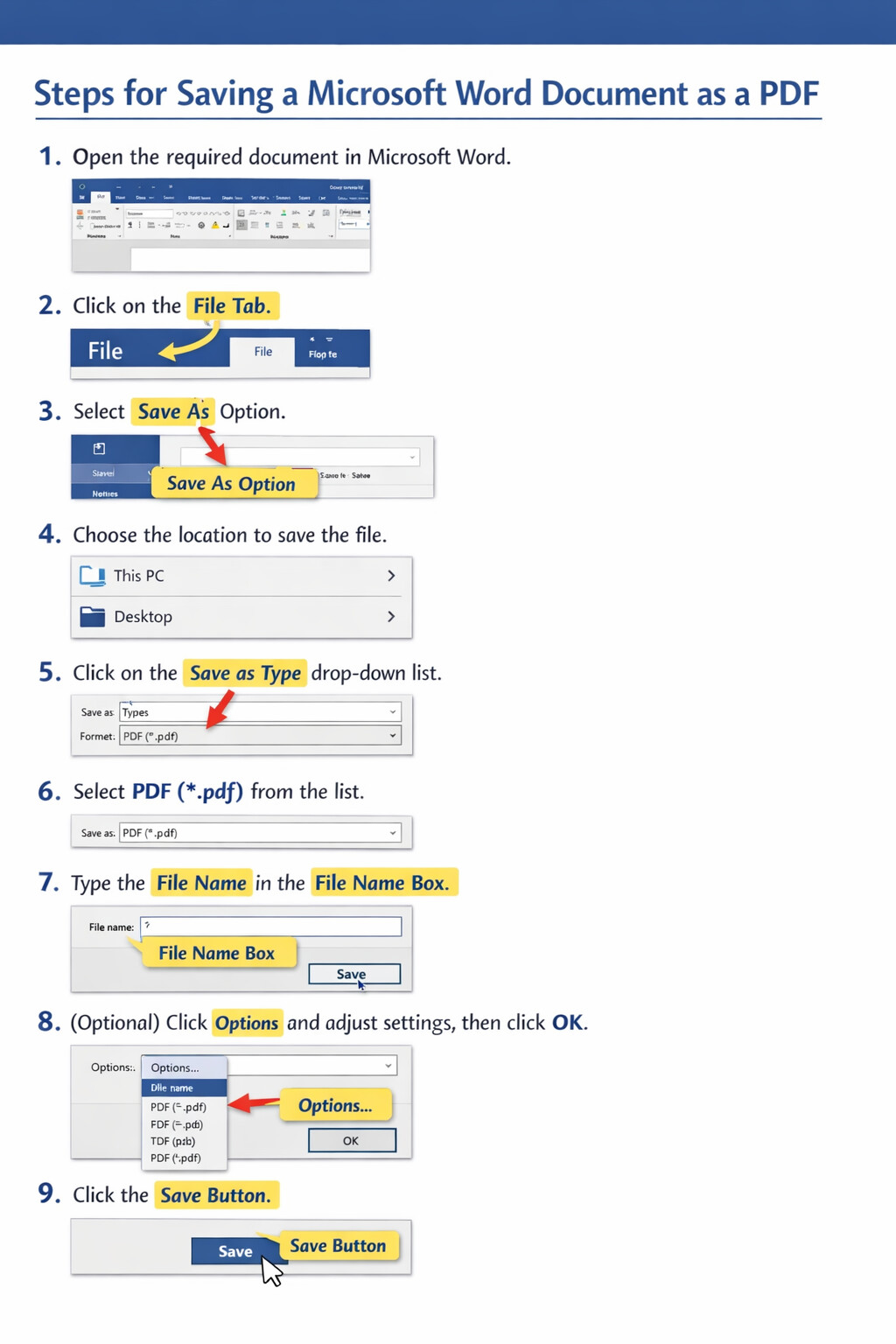
- Open the required document in Microsoft Word.
- Click on the File tab at the top-left corner of the window.
- From the File menu, select Save As.
- Choose the location where you want to save the file (e.g. This PC, Documents, Desktop).
- Click on the Save as type drop-down list.
- Select PDF (*.pdf) from the list.
- Type the file name in the File name box.
- (Optional) Click Options to select pages or printing quality, then click OK.
- Click the Save button to create the PDF file.
Short Exam Answer Version
Open document → File → Save As → choose location → Save as type: PDF → enter file name → Save.