WHMCS Management Account (Sub aaPanel)
- Sub aaPanel for sale via WHMCS
Prerequisites
- WHMCS website has been deployed
- aaPanel has been installed
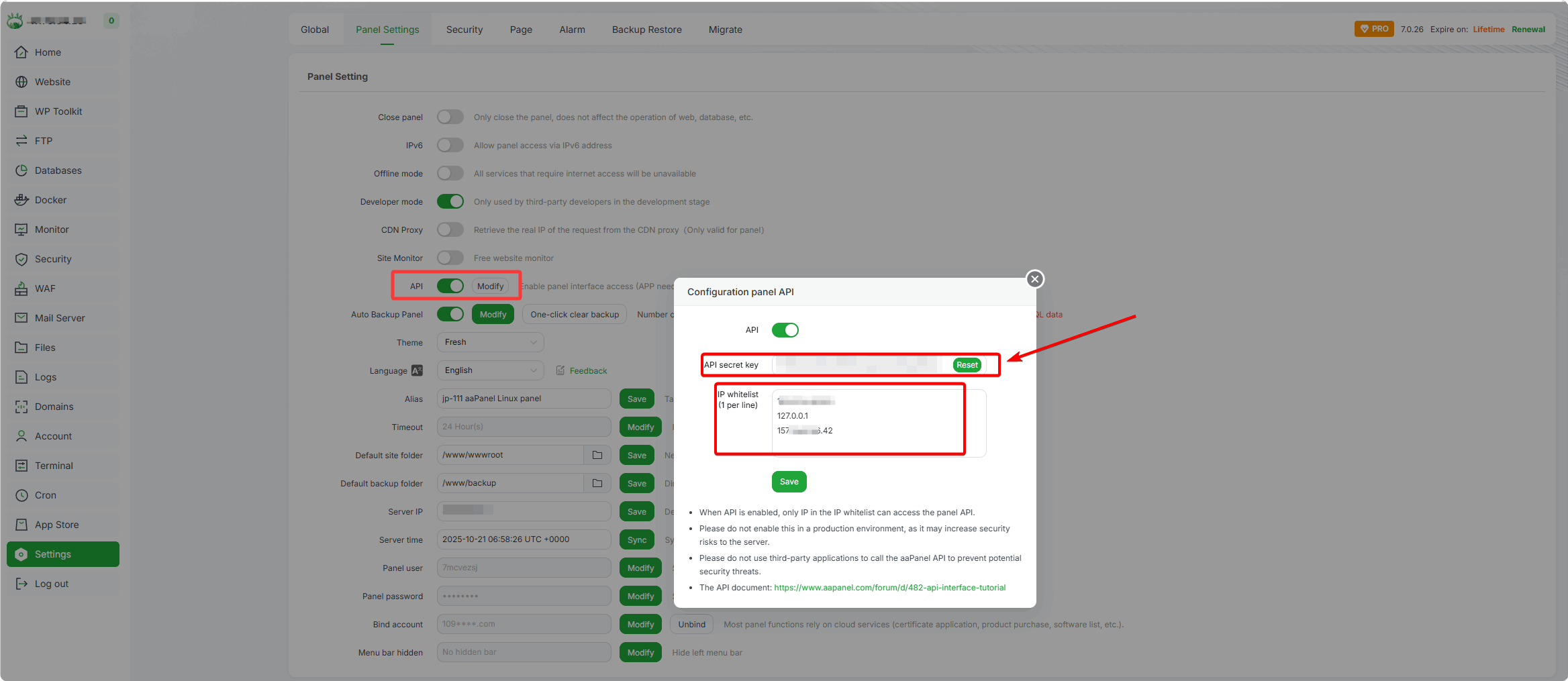
Enable aaPanel API
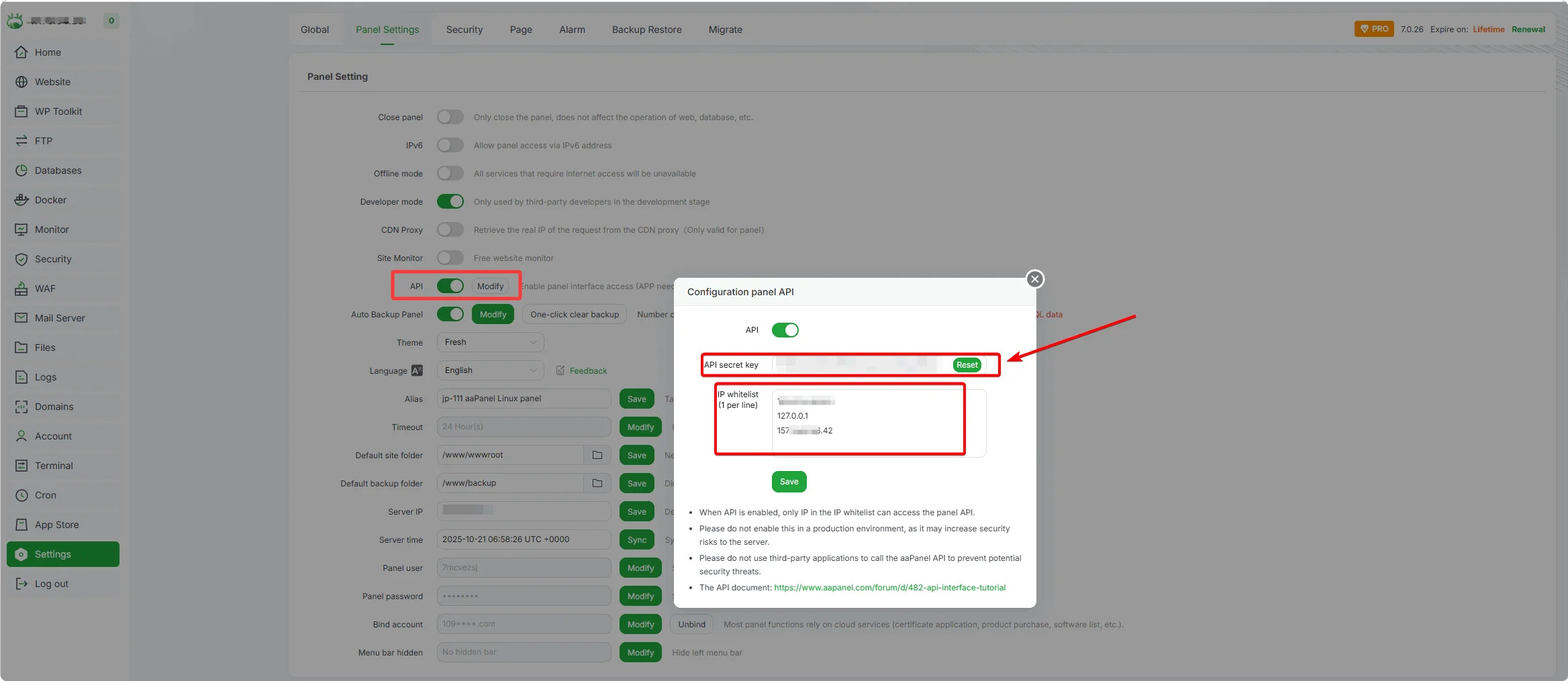
Setting → API
- Enable API
- Add the IP address of the server where the WHMCS service is located to the IP whitelist
- Copy the
API secret keyfor later use - Install Sub aaPanel in the Account
- Set the correct access address and test whether normal access is possible
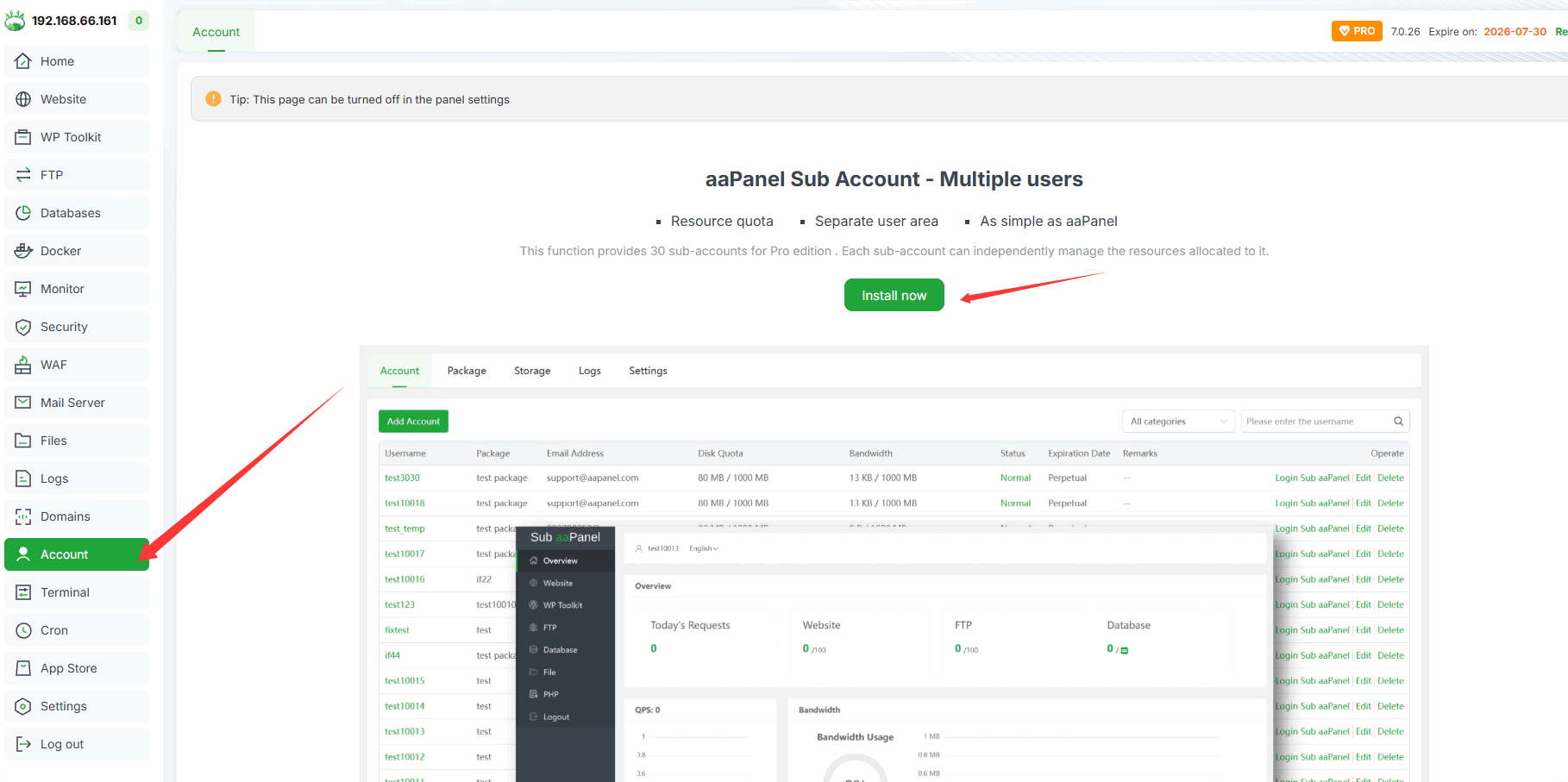
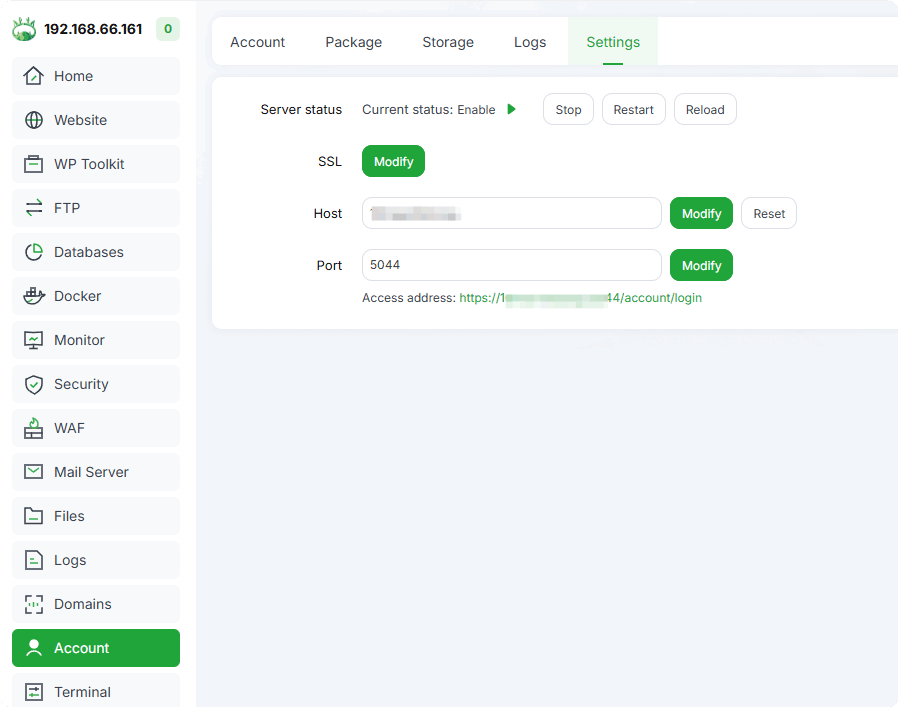
Install Connection Plugin in WHMCS
Install steps:
- Download service pack: https://www.aapanel.com/download/aapanel_whmcs.zip
- Upload and decompress Upload the file to the directory of the WHMCS website. If the website directory is /wwwroot/wmcs.aapanel.store, upload it to the /wwwroot/wmcs.aapanel.store
/modules/serversdirectory and extract it there. - Delete the uploaded compressed file
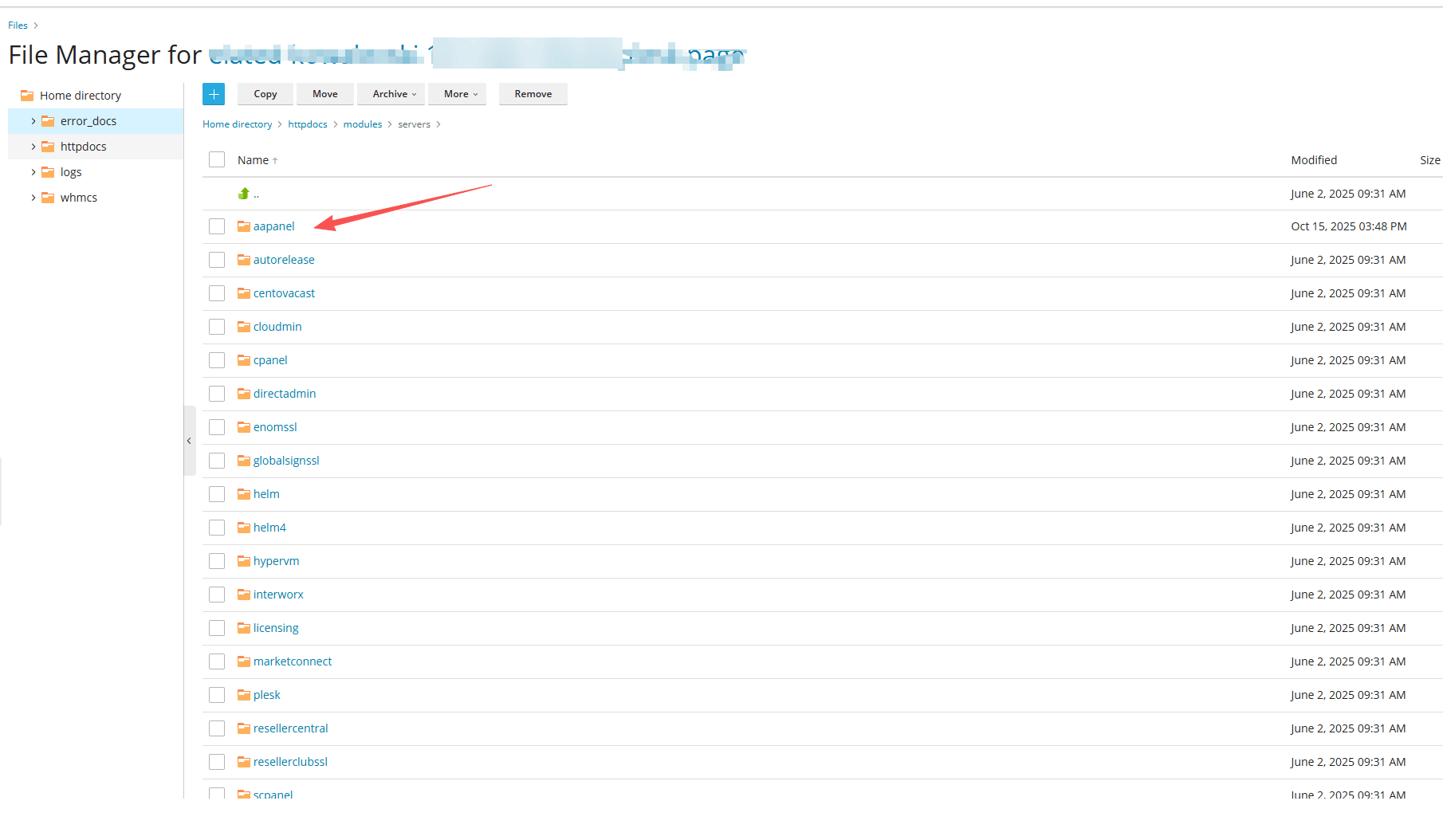
Add Product in WHMCS
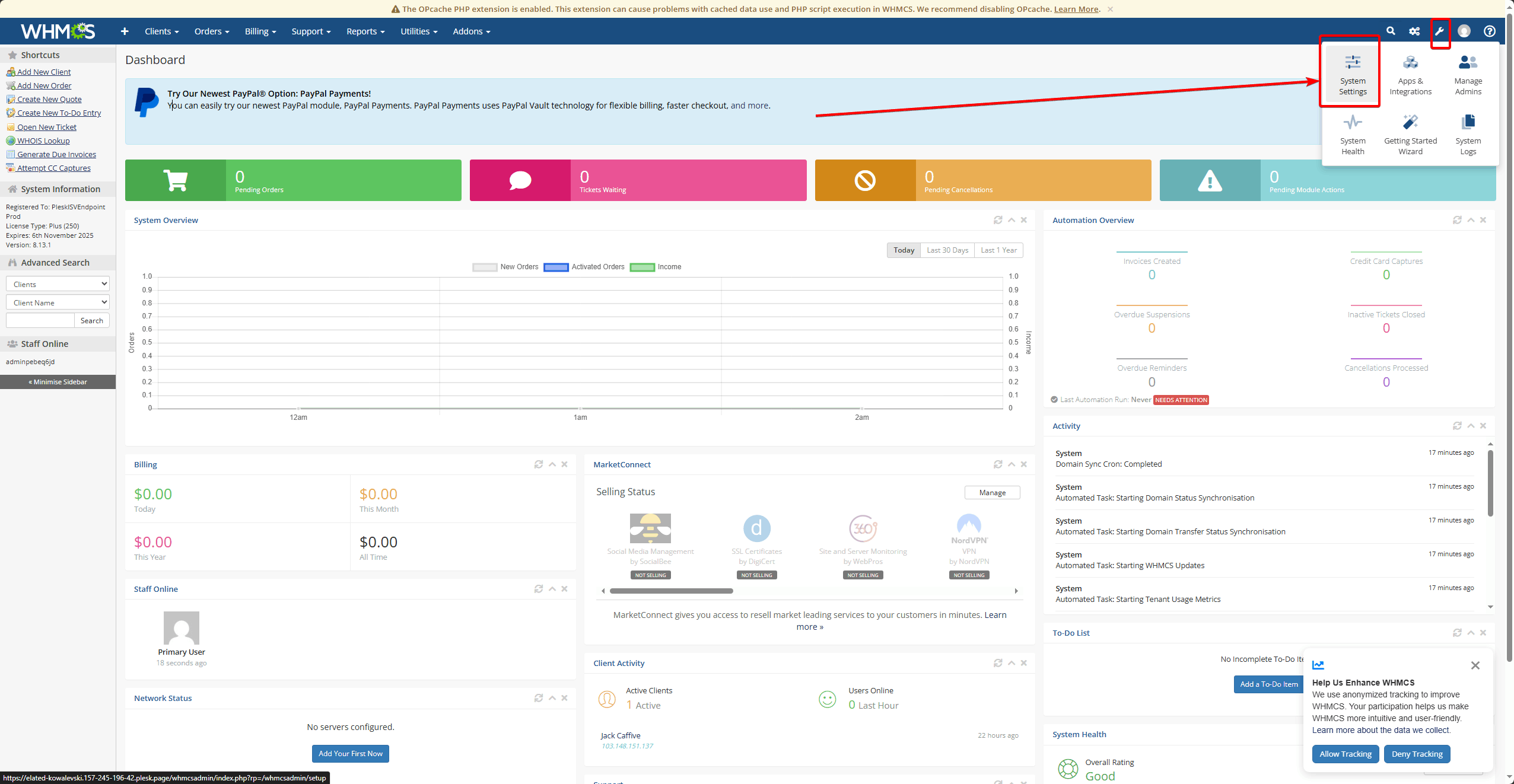
- System Settings
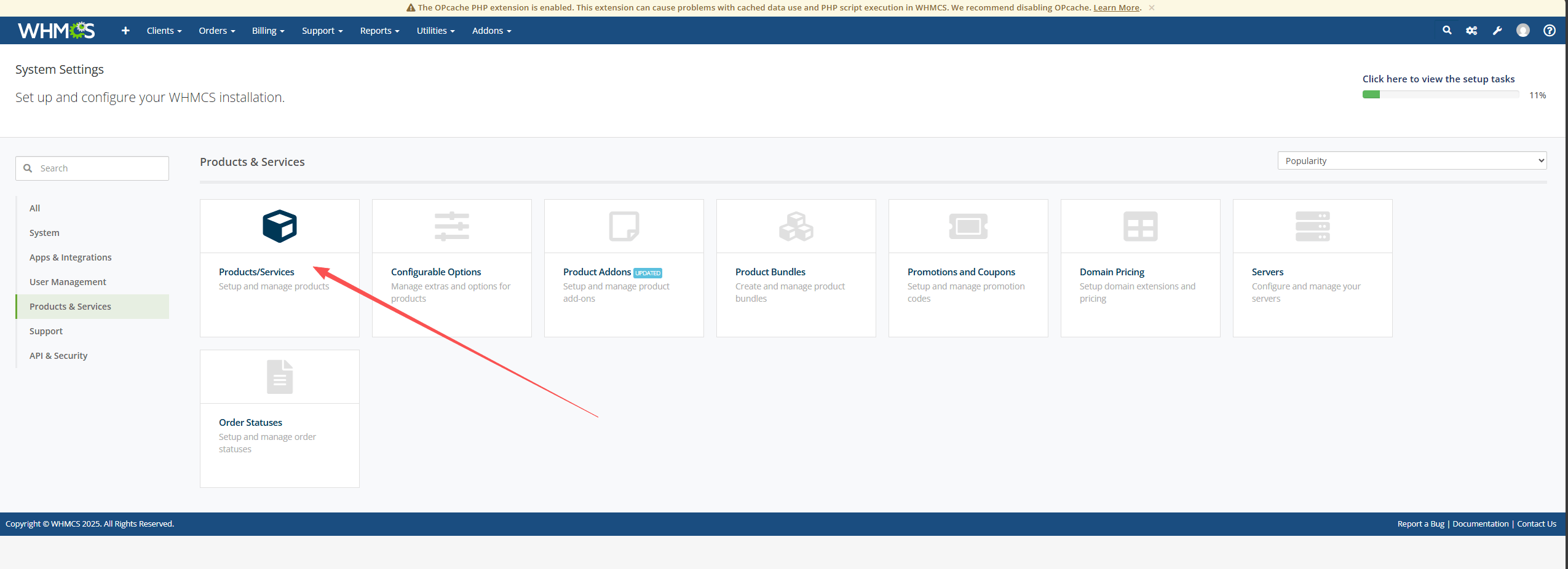
- Products & Services
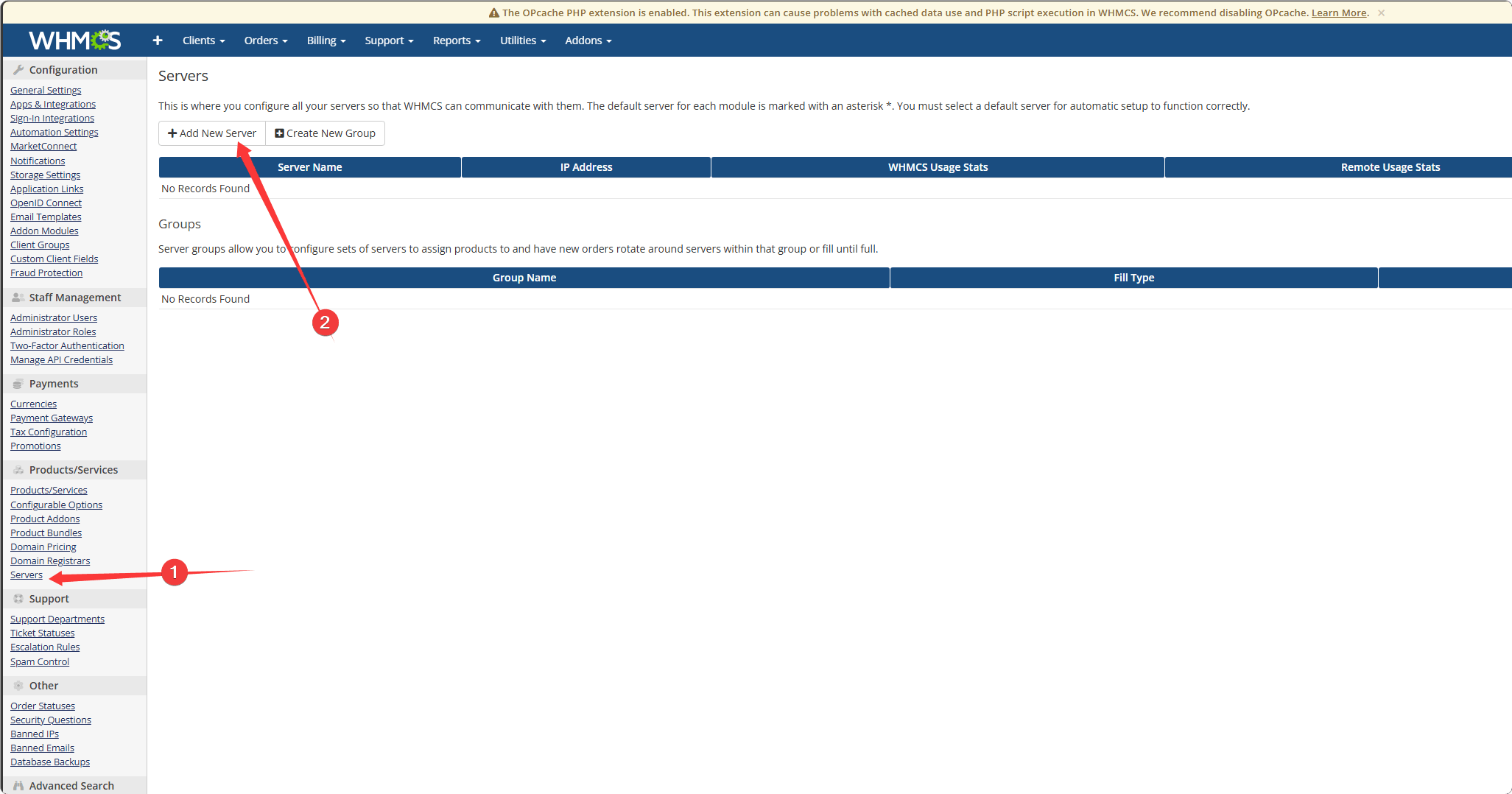
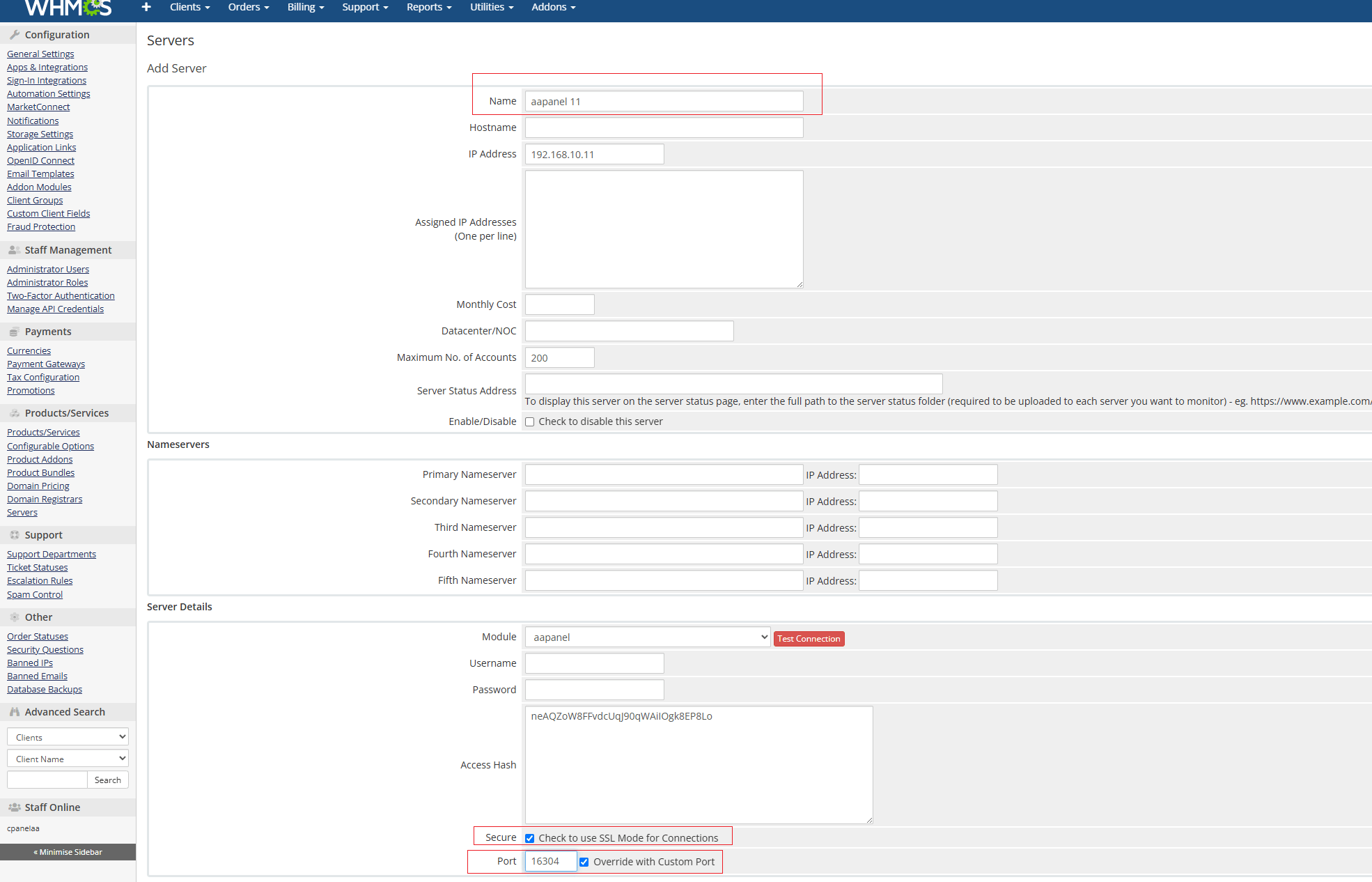
- Add New Server
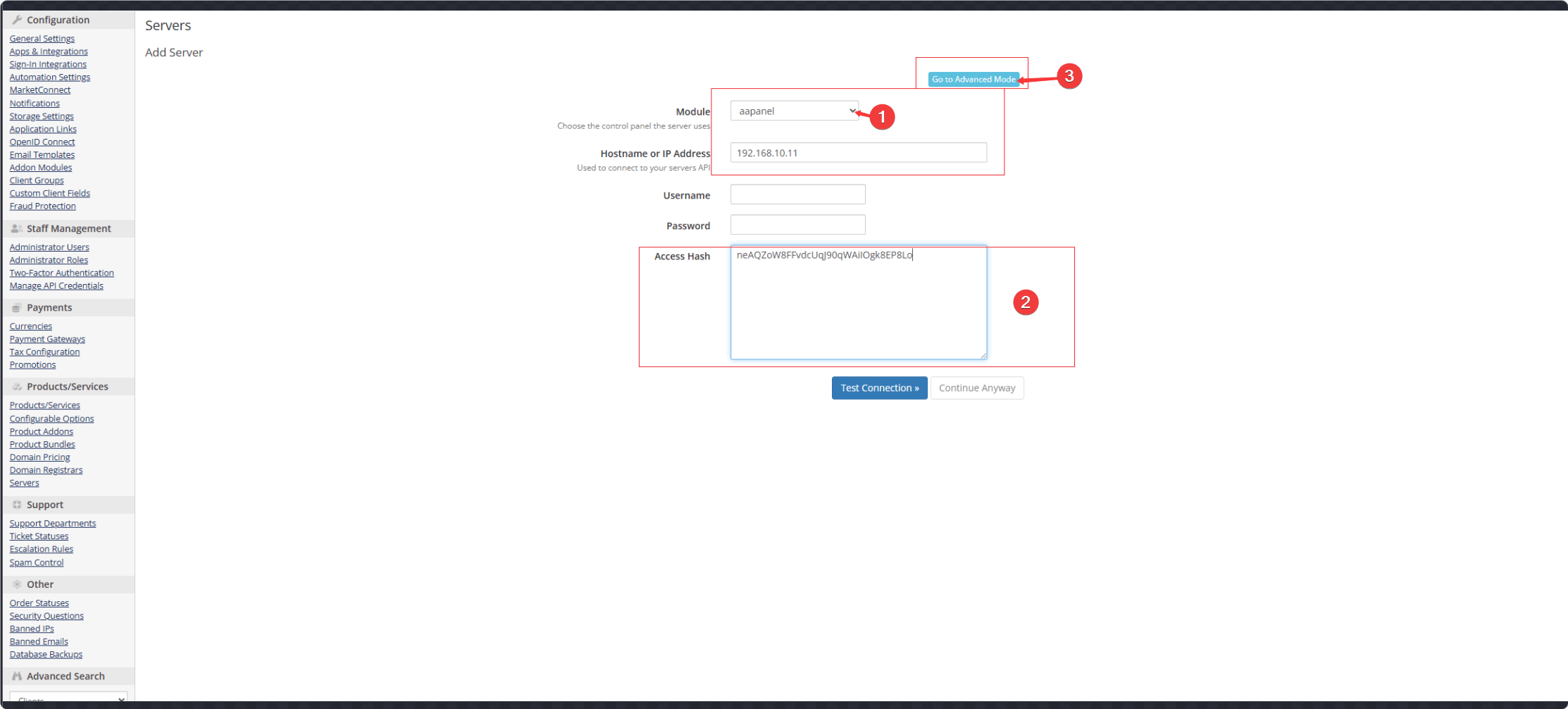
- Module: aapanel
- Hostname or IP Address: IP address of your aaPanel server
- Access Hash: Paste the
API secret keyof aaPanelGo to Advanced Mode - Override with Custom Port:
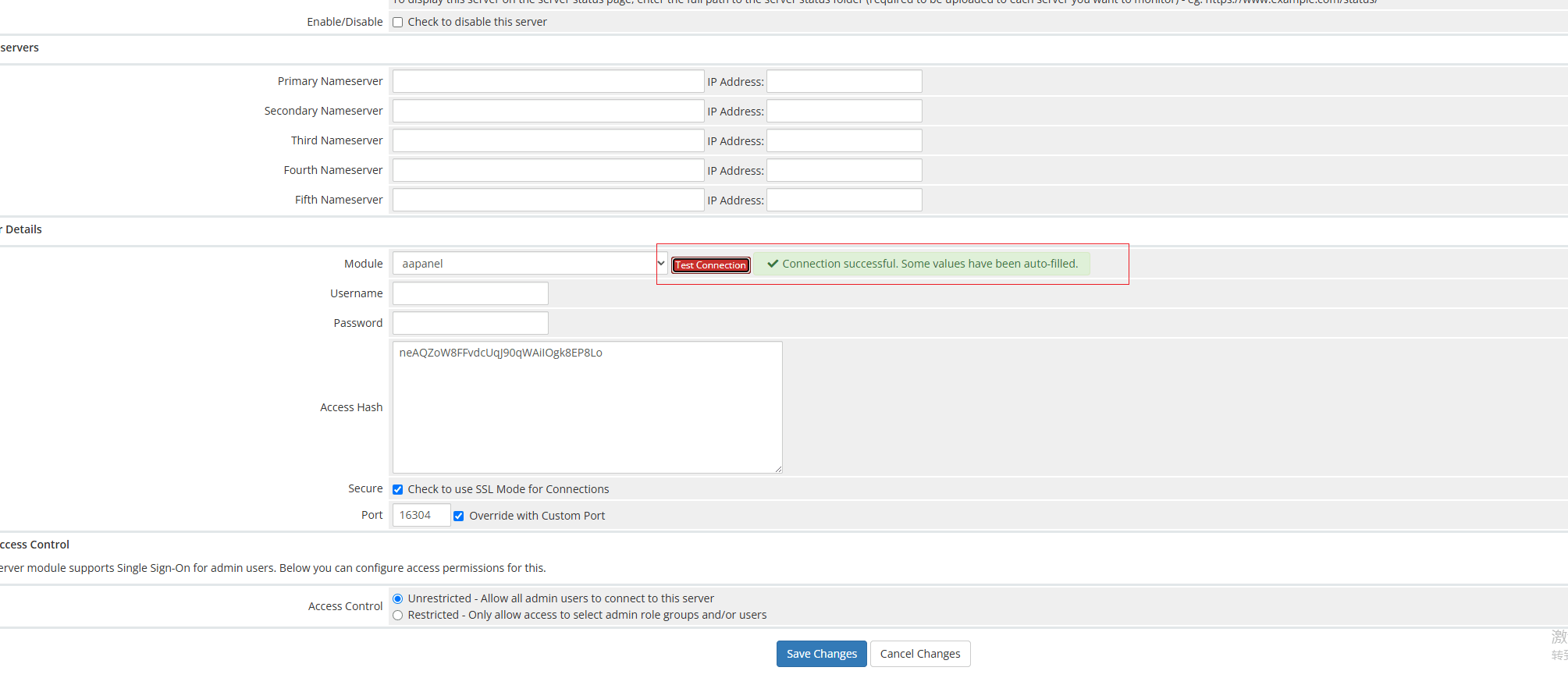
Portof your aaPanel - Test Connection.As shown in the picture, the message “Connection successful. Some values have been auto formed.” indicates that the connection is normal. Then click “Save Changes”.
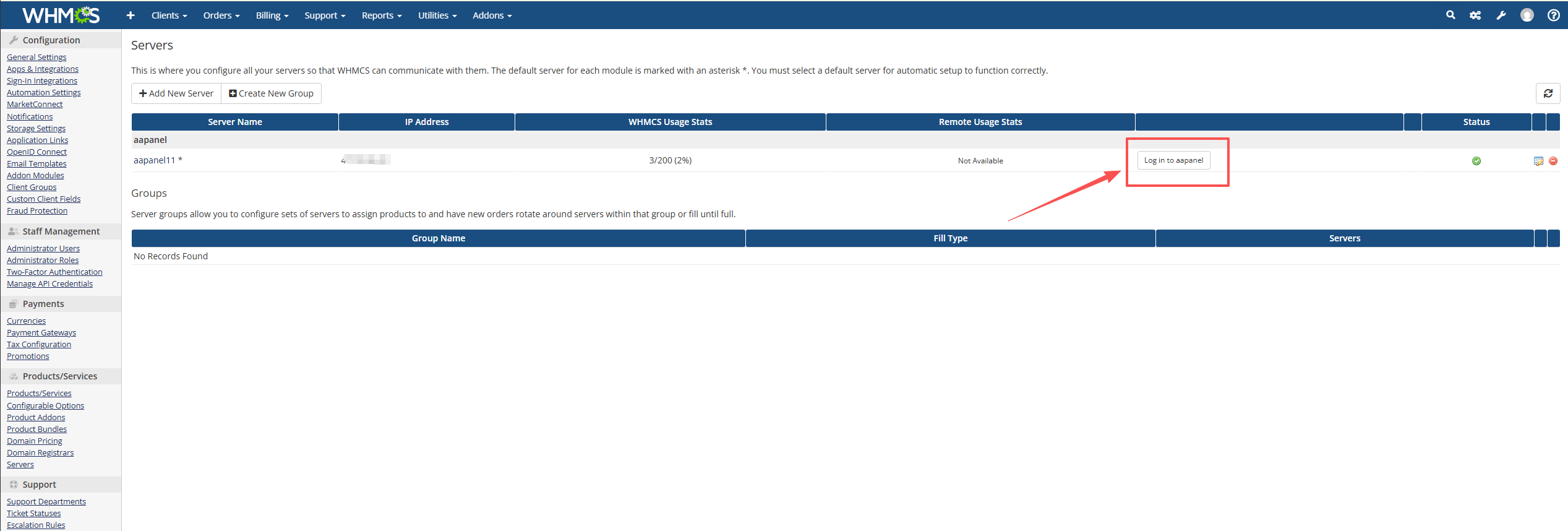
- Configure the settings as shown in the picture to enable one-click login to the aaPanel
Create New Product
Products/Services → Create a New Product
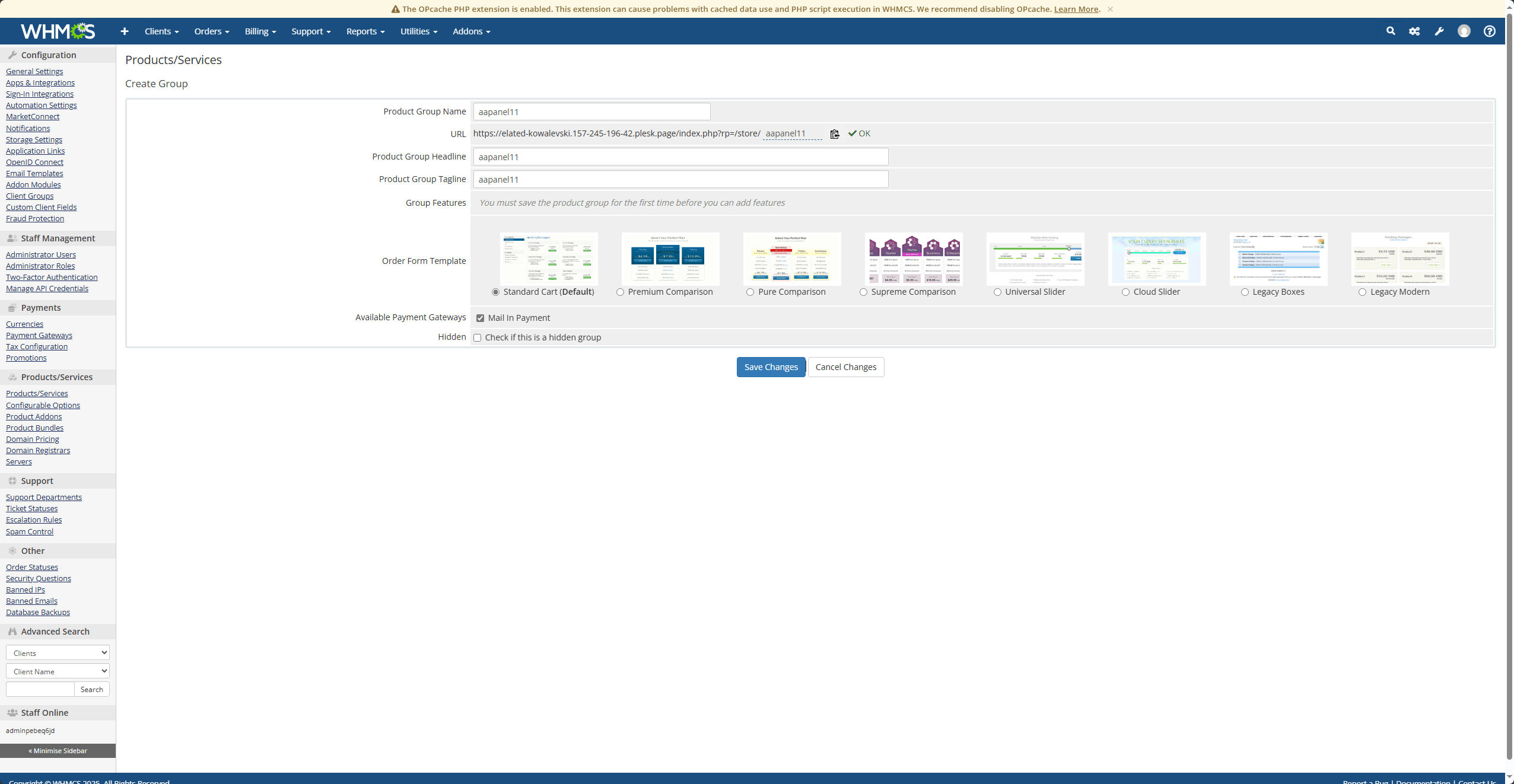
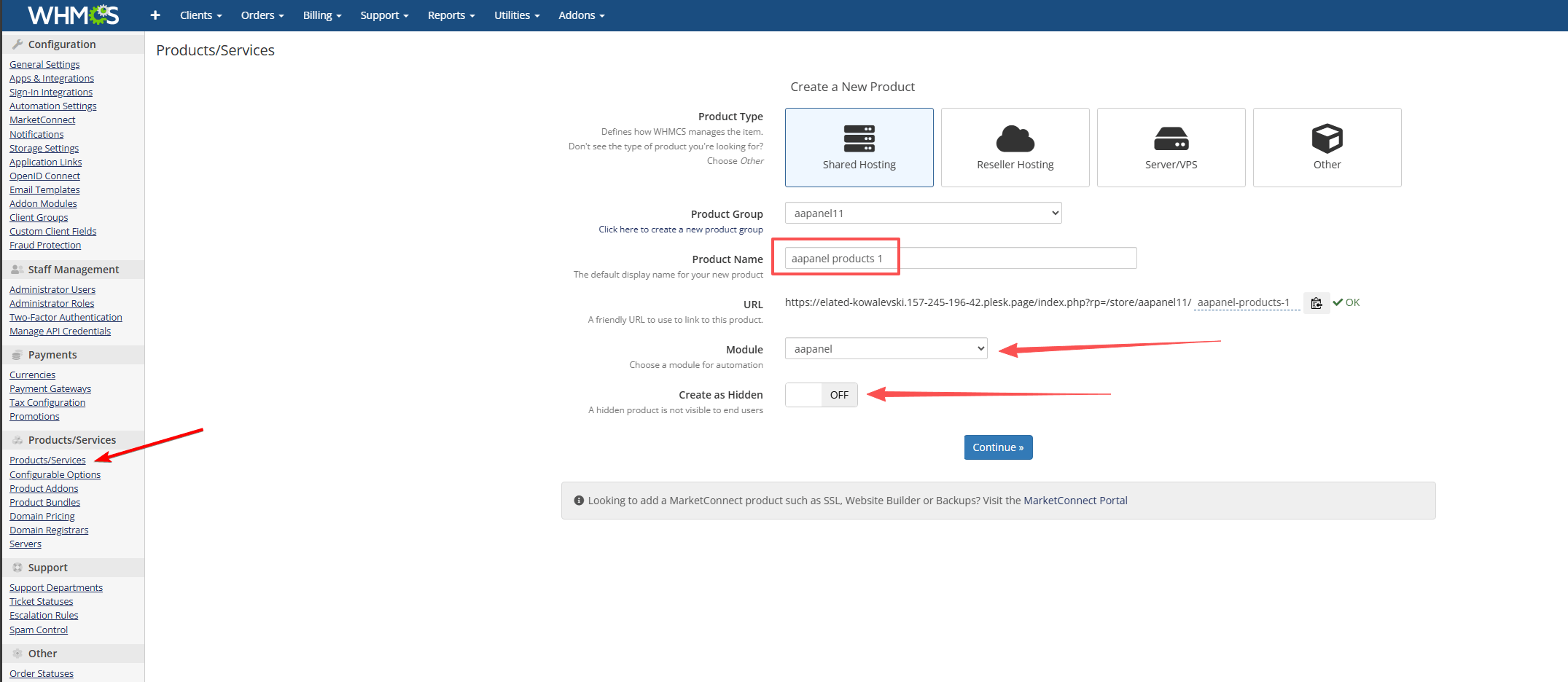
- Product Group: Select the Server added earlier
- Product Name: Enter your own product name
- Module:
aapanel - Create as Hidden:
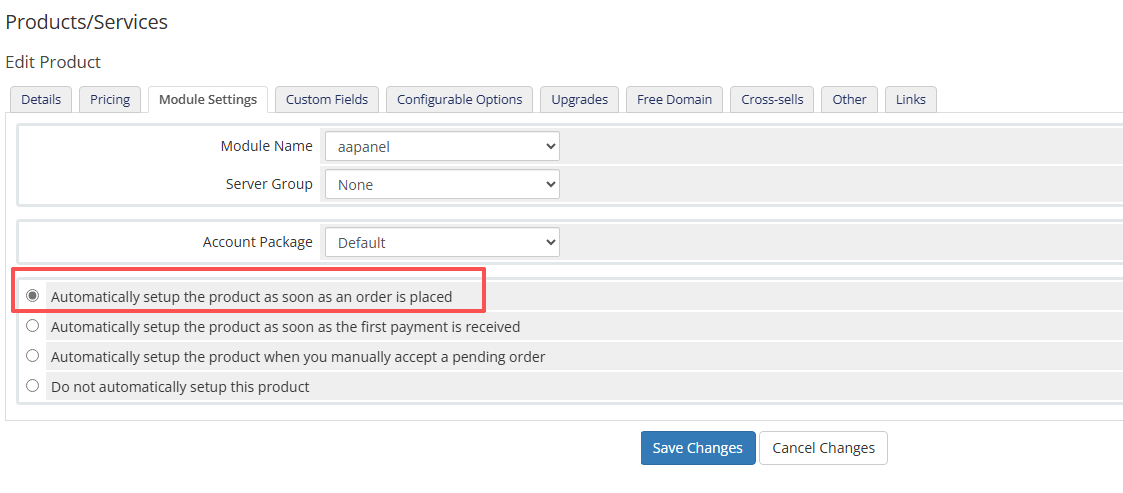
OFF - Module Settings: Choose
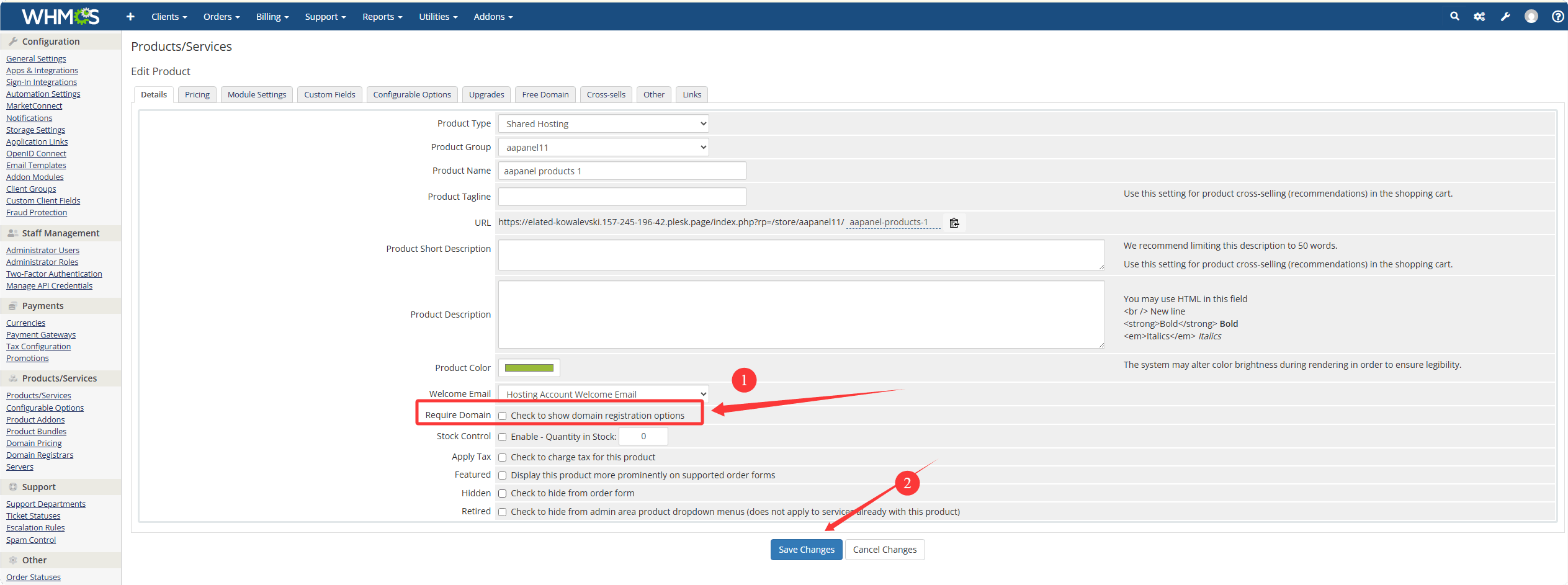
Automatically setup the product as soon as an order is placed - Uncheck
Check to show domain registration options, then click Save Changes
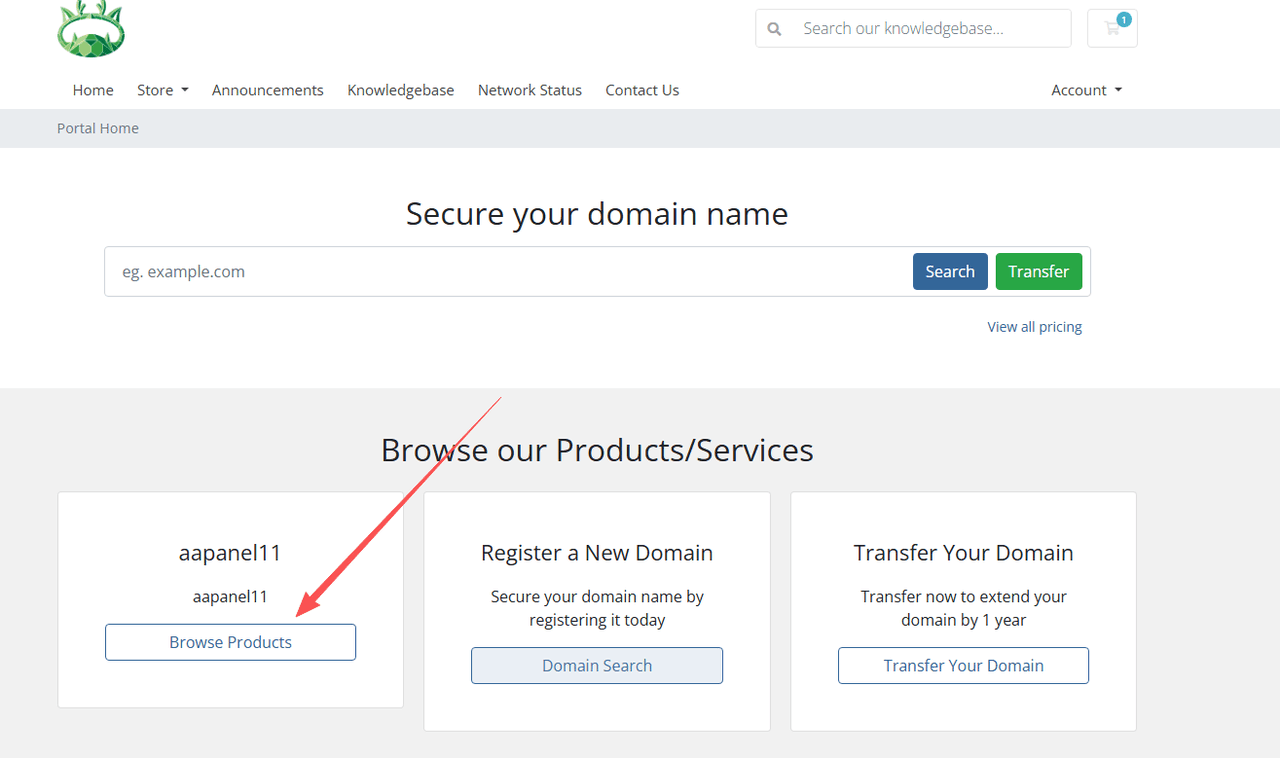
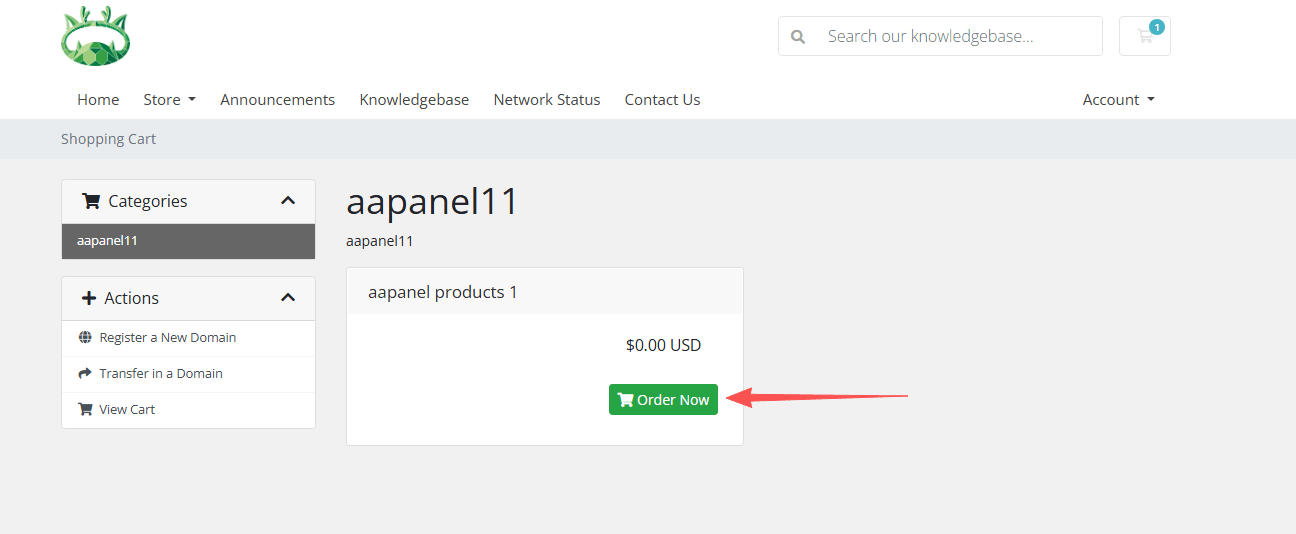
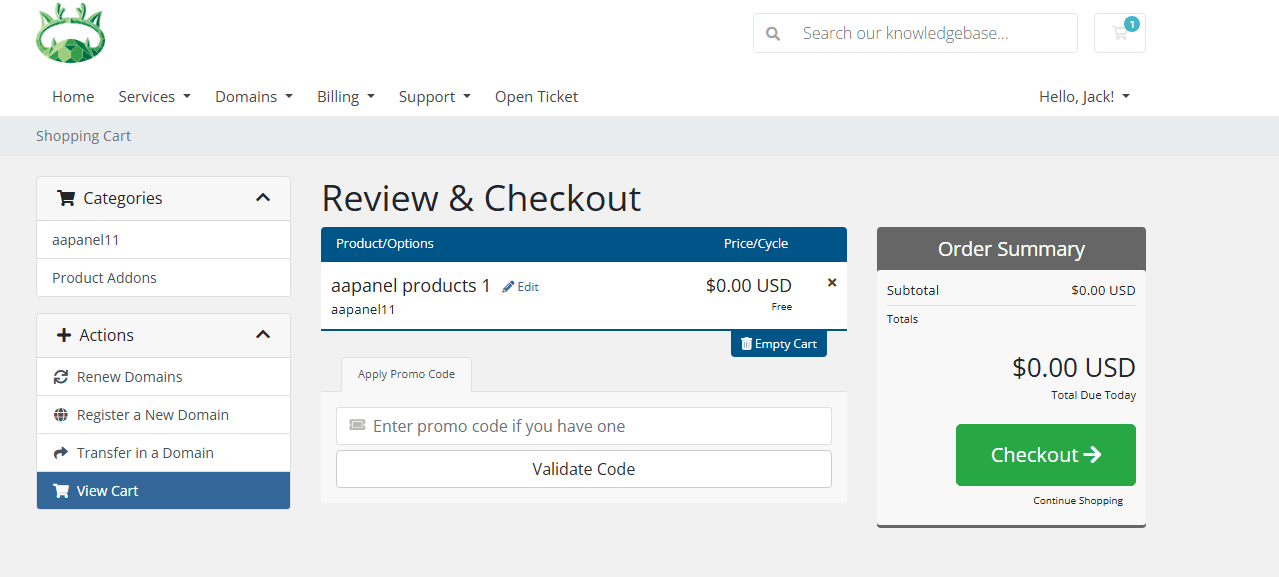
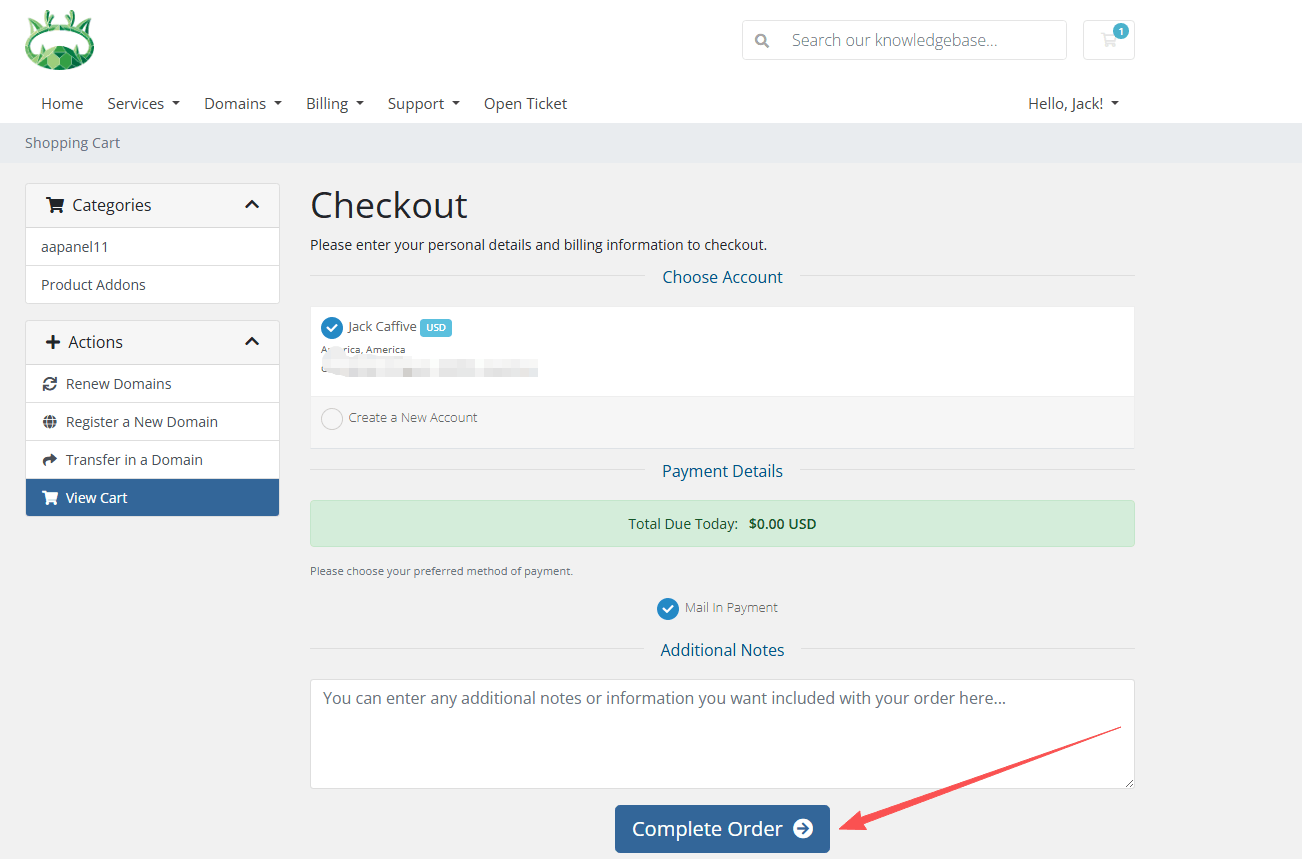
User Purchase Process
- Find the corresponding product and purchase it
- Log in or register an account
- Fill in the relevant information and complete the payment
- Purchase successful
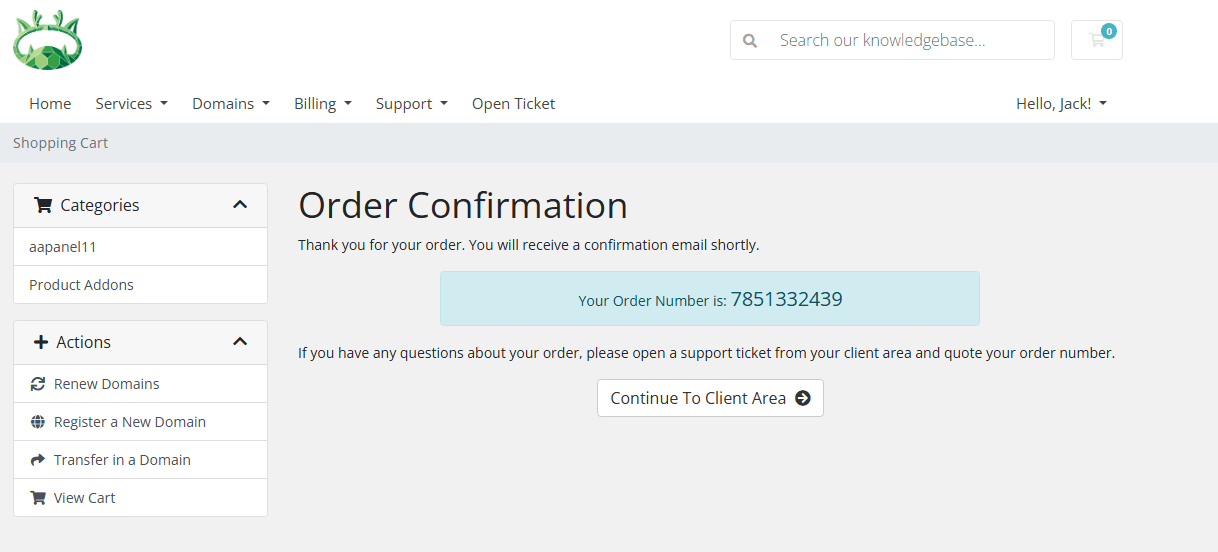
WHMCS Order Confirmation
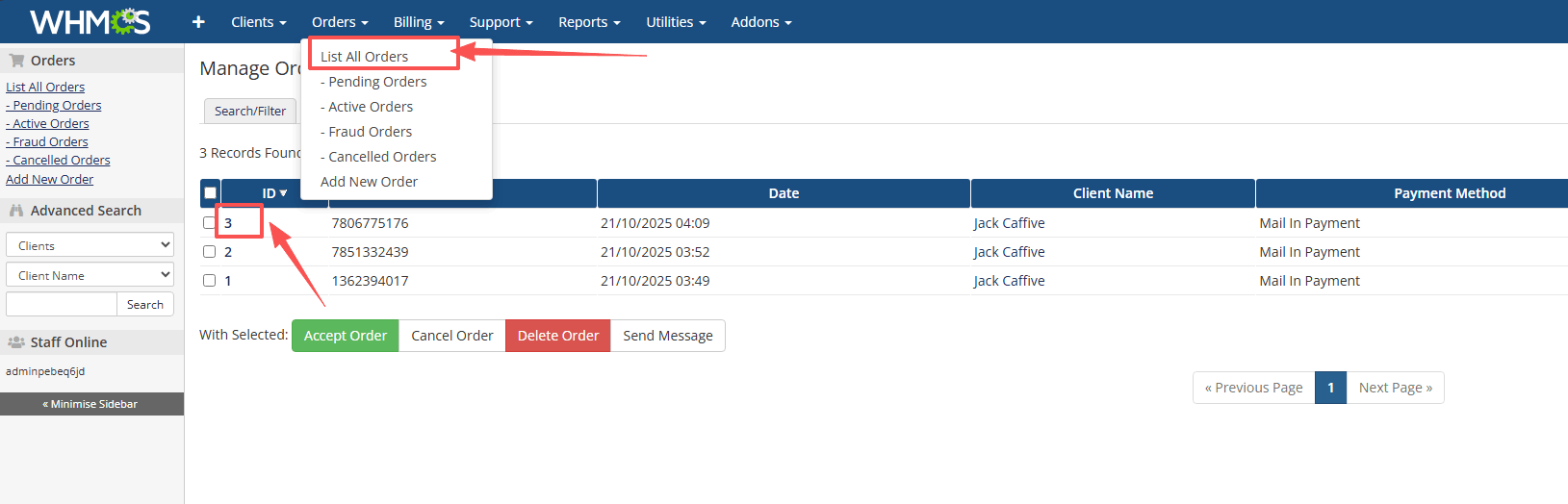
Order → List All Orders
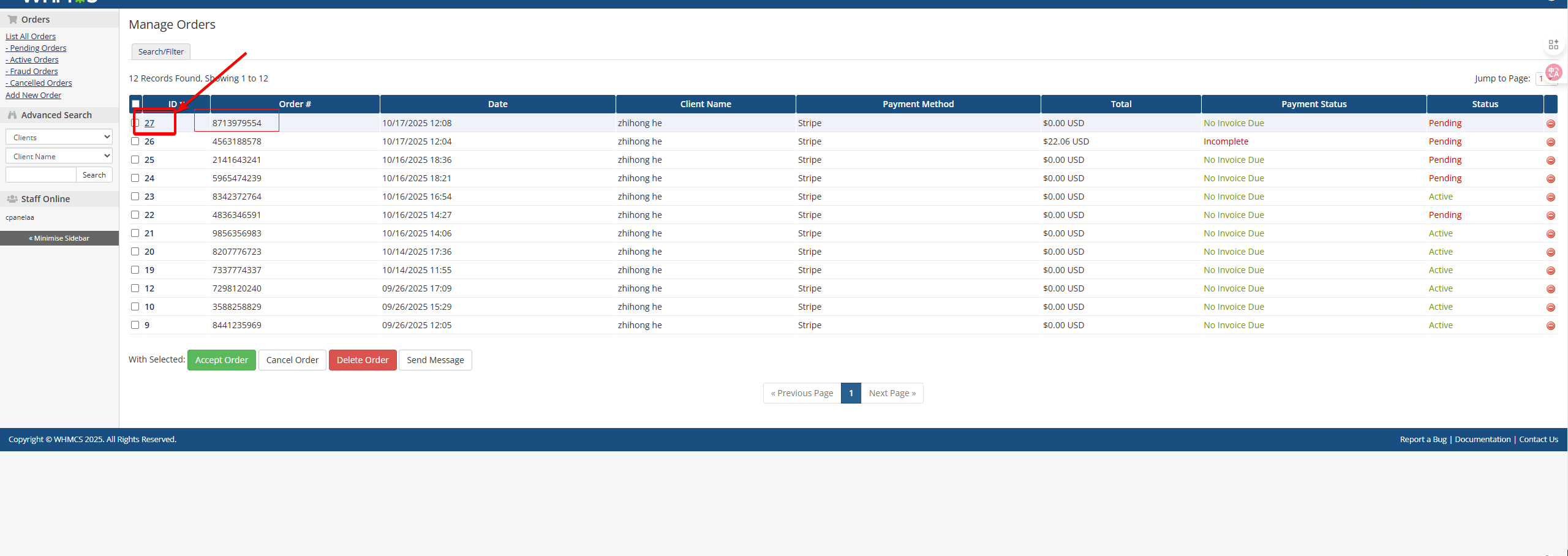
- Find the corresponding order
- Click the ID to enter the order details page
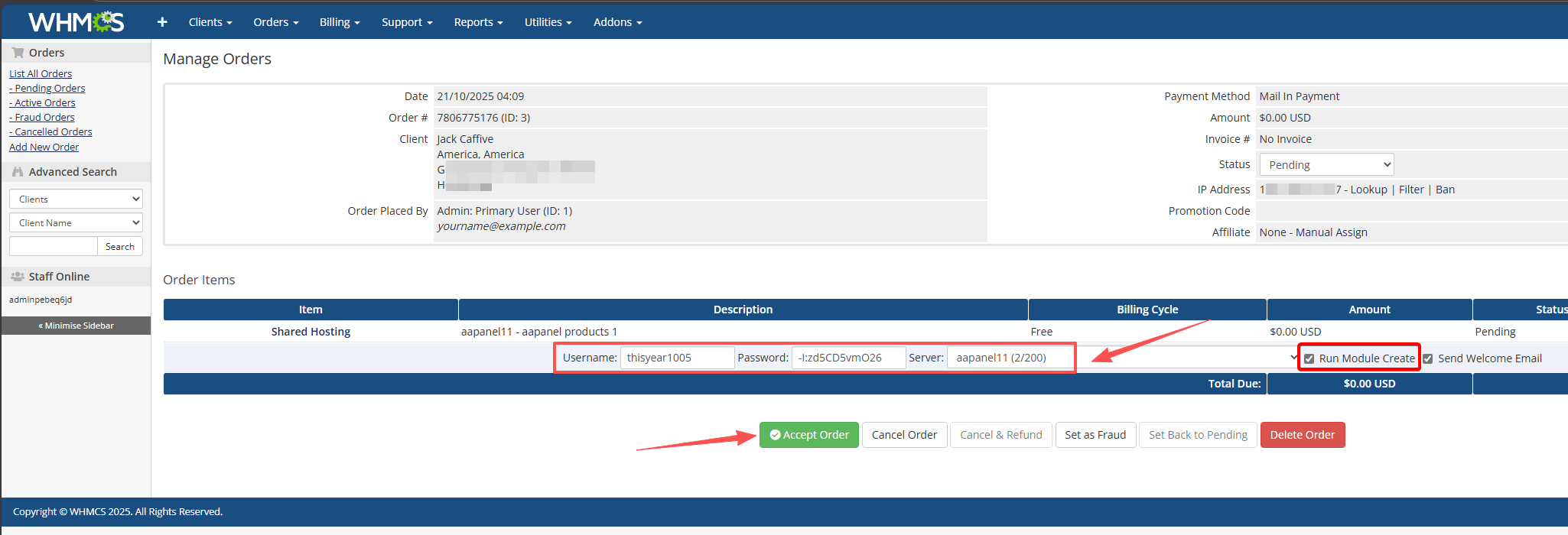
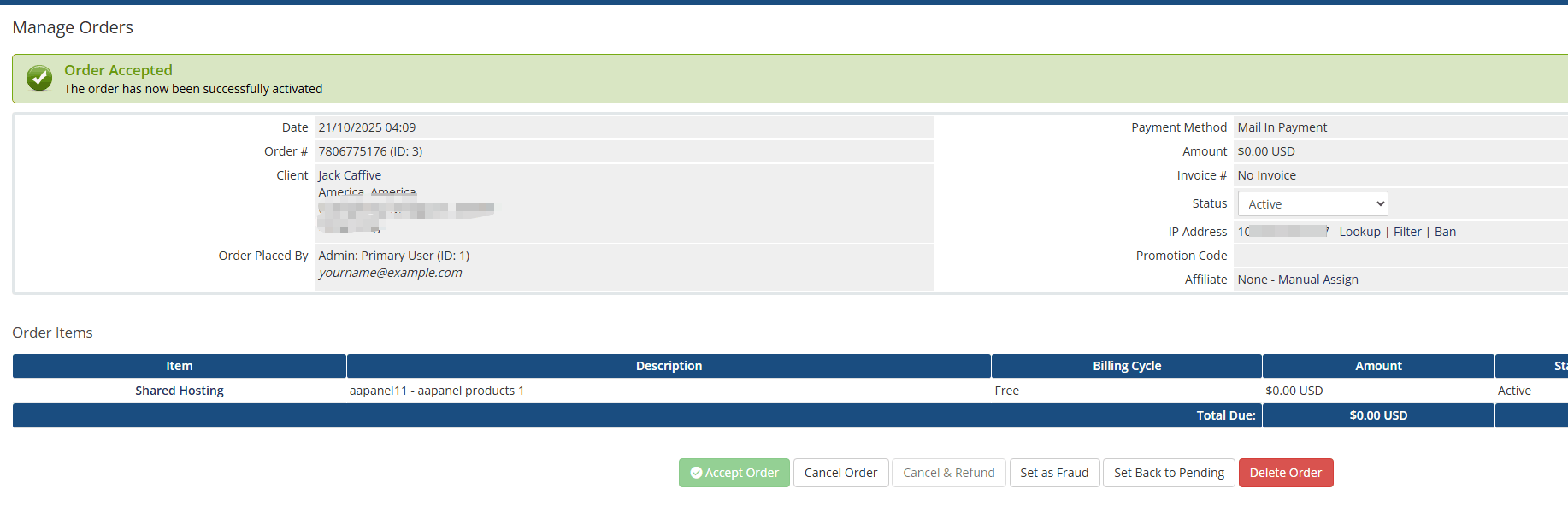
- Add an account, confirm the password, and accept the order
- Must select:
Run Module Create
- Must select:
User Usage of Sub aaPanel
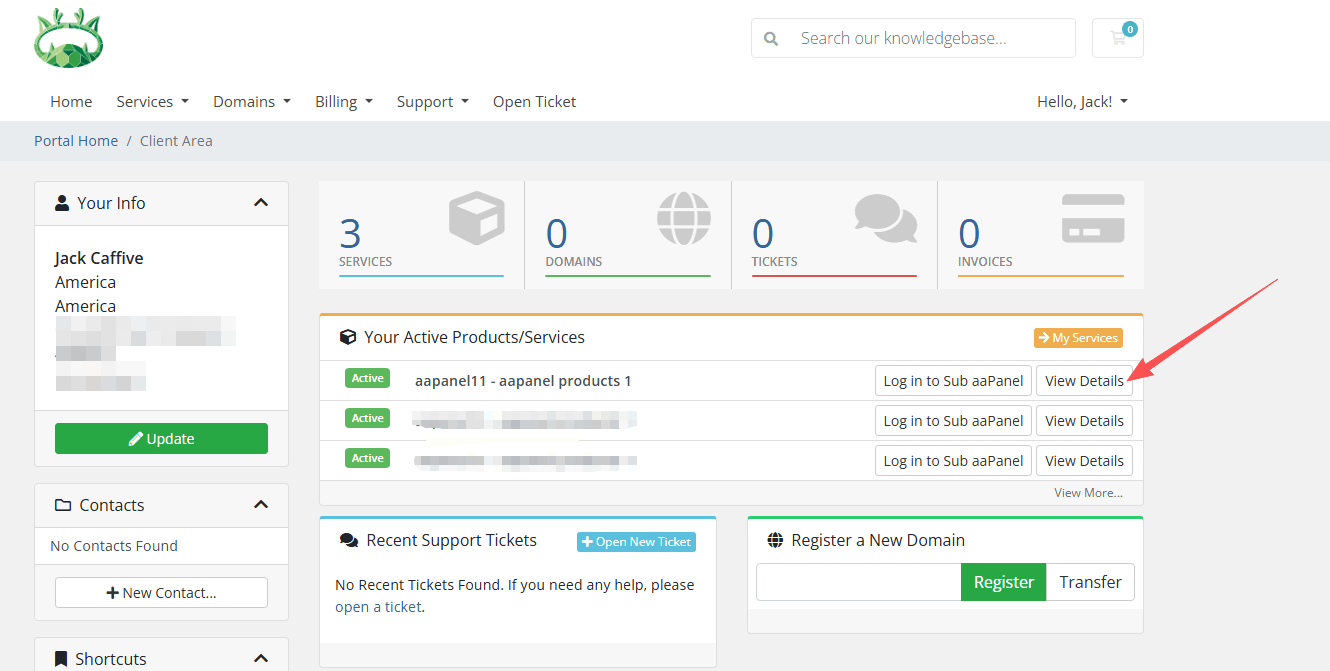
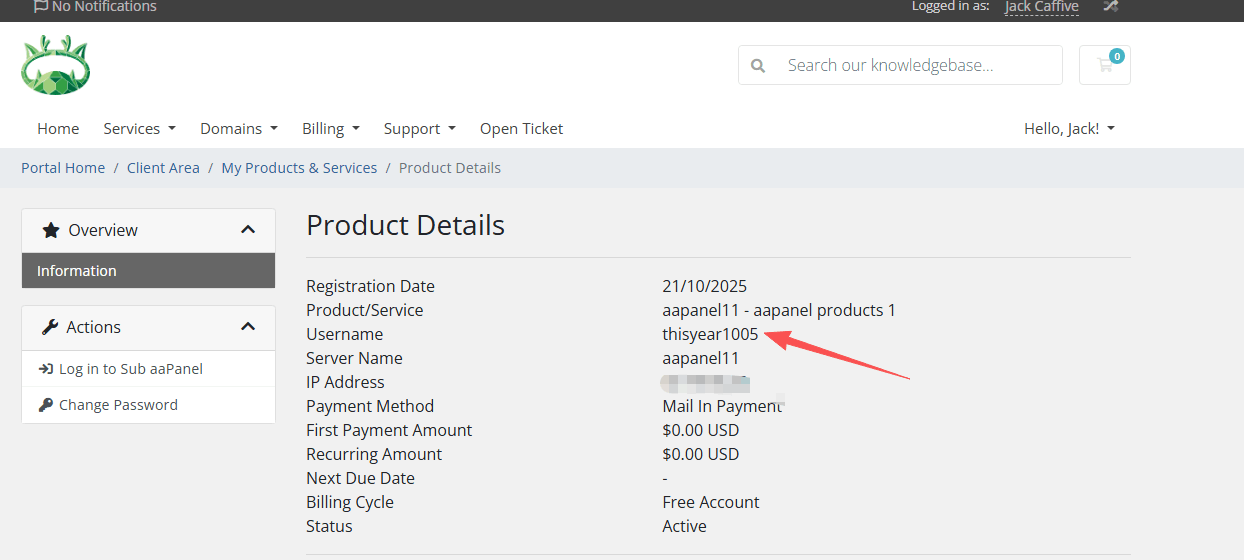
- View order information
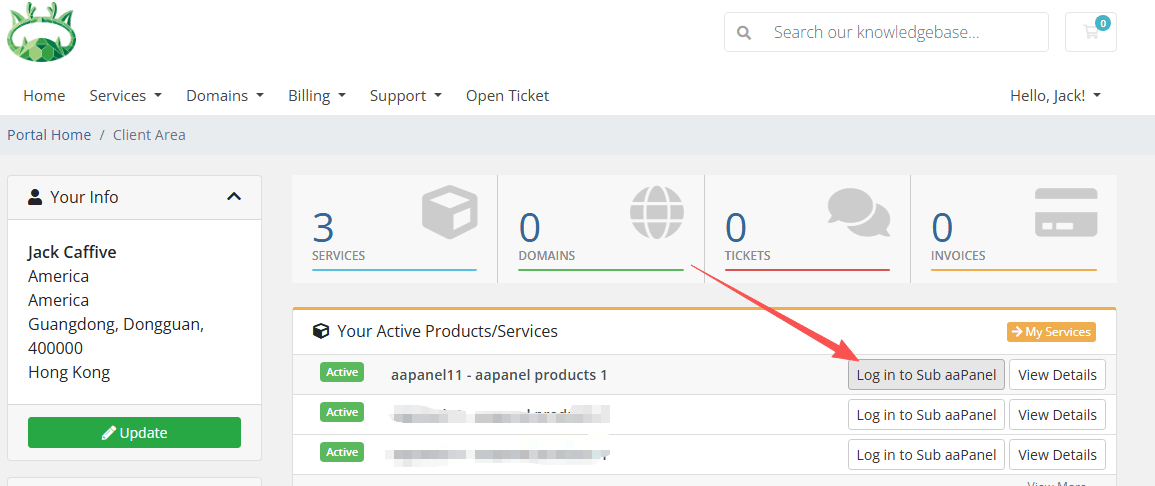
- One-click password-free login to Sub aaPanel