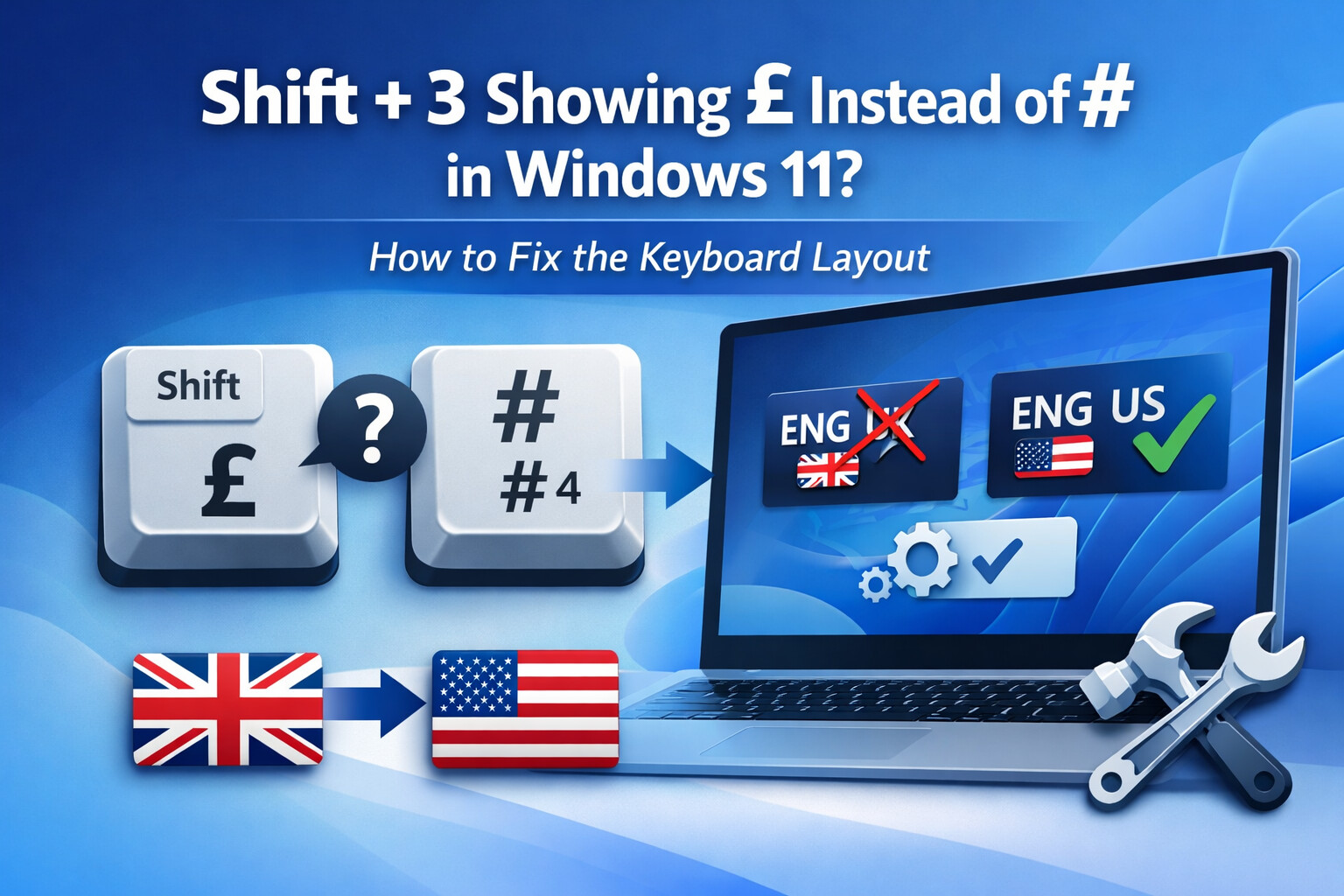
Why Shift + 3 Shows £ Instead of # in Windows 11 (And How to Fix It)
If pressing Shift + 3 on your keyboard gives you the £ (pound) symbol instead of # (hash), you’re not dealing with a broken keyboard. This is a Windows 11 keyboard layout issue, and it’s surprisingly common.
Let’s break it down and fix it properly.
The Root Cause: Keyboard Layout Mismatch
Windows 11 supports multiple keyboard layouts. Each layout defines what character appears when you press certain key combinations.
Common layouts involved
-
United Kingdom (UK) keyboard
Shift + 3→ £#is on a different key
-
United States (US) keyboard
Shift + 3→ #$is onShift + 4
If your physical keyboard is US-style but Windows 11 is set to UK, symbols won’t match what’s printed on the keys.
How This Usually Happens
- Windows 11 auto-selected a region during installation
- Language packs were added accidentally
- Laptop shipped with a default UK layout
- External keyboard plugged in without layout adjustment
The keyboard works perfectly. Windows just speaks the wrong “language”.
How to Fix It in Windows 11 (Step by Step)
Method 1: Change Keyboard Layout (Recommended)
- Click Start
- Open Settings
- Go to Time & Language
- Select Language & Region
- Under Preferred languages, click your language (e.g. English)
- Click Options
- Scroll to Keyboards
- If you see United Kingdom, click the three dots → Remove
- Click Add a keyboard
- Select United States – QWERTY
- Sign out or restart Windows
How to Confirm It’s Fixed
After restarting:
-
Press Shift + 3
#→ Correct
£→ Layout still UK
Quick Temporary Workaround (Without Changing Settings)
If you’re stuck for the moment:
- On a UK layout, the
#symbol is usually typed using: *Shift + * (key next to Enter)
This is useful during coding or password entry when settings can’t be changed immediately.
Why This Matters (Especially for Developers & IT Users)
Incorrect keyboard layouts can cause:
- Errors in passwords
- Issues in coding (
#,$,{},@) - Problems with command line, Linux terminals, and servers
- Confusion during remote work or SSH sessions
A correct keyboard layout saves time and avoids silent mistakes.
Bonus Tip: Keyboard Layout Shortcut in Windows 11
Windows 11 lets you switch layouts instantly:
- Windows key + Spacebar
If you see ENG (UK) on the taskbar, you’re on a UK layout. Switch to ENG (US) for the expected symbols.
Conclusion
If Shift + 3 shows £ instead of #, the issue is not your keyboard. It’s a Windows 11 keyboard layout mismatch. Fixing it takes less than two minutes and restores normal typing instantly.
Correct layout. Correct symbols. Peace restored. 
