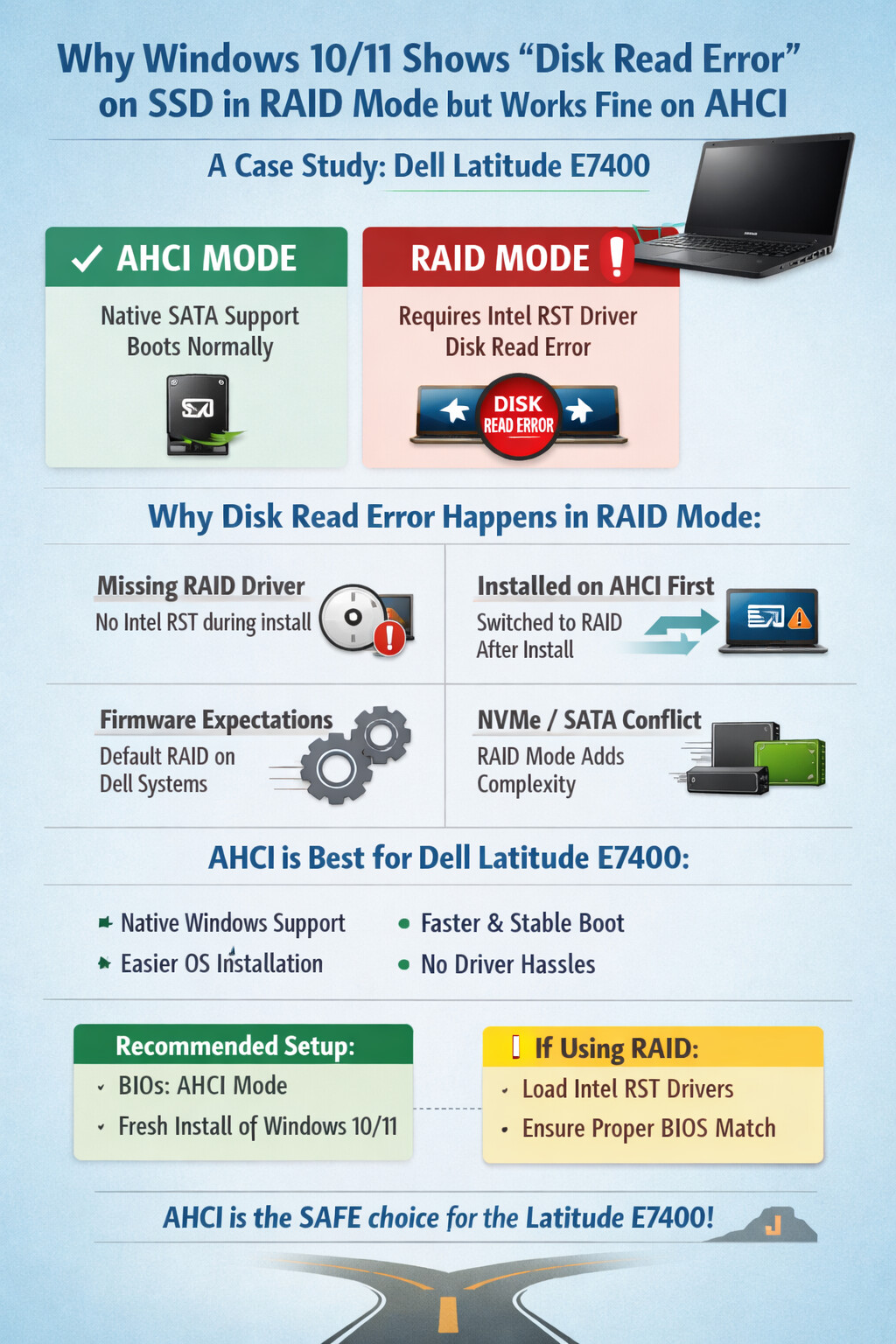
Why Windows 10/11 Shows “Disk Read Error” on SSD in RAID Mode but Works Fine on AHCI
A Case Study: Dell Latitude E7400
If you’ve ever installed Windows 10 or Windows 11 on a Dell Latitude E7400, only to be greeted by a cold message like “Disk Read Error” when the BIOS is set to RAID, you’re not alone. Switch the BIOS to AHCI, and suddenly everything works like nothing ever happened.
So what’s going on behind the curtain?
Let’s break it down.
Understanding the Two Modes: RAID vs AHCI
Before pointing fingers, we need to understand what these modes actually do.
AHCI (Advanced Host Controller Interface)
- Standard SATA controller mode
- Native support built into Windows
- Simple, direct communication with SSDs
- Works out-of-the-box with almost all modern operating systems
RAID (Intel RST / Intel Rapid Storage Technology)
- Designed for combining multiple disks (RAID 0, 1, etc.)
- Adds a controller abstraction layer
- Requires Intel RAID drivers during OS installation
- Often enabled by default on Dell systems
On the Latitude E7400, RAID mode does not necessarily mean you’re actually using RAID. It usually means the storage controller expects Intel RST drivers.
Why the Disk Read Error Happens in RAID Mode
1. Missing Intel RST Driver During Installation
Windows installer boots, sees the SSD, installs the OS, but…
At boot time:
- The RAID controller looks for Intel RST support
- Windows cannot properly communicate with the SSD
- Result: Disk Read Error
In AHCI mode:
- Windows uses its native AHCI driver
- No translation layer
- Smooth boot

2. Windows Installed in AHCI, Then Switched to RAID
This is a classic trap.
If Windows was installed while BIOS was set to AHCI, then later switched to RAID:
- Windows lacks the RAID boot driver
- The SSD becomes unreadable at startup
- Boot fails instantly
AHCI mode works because that’s what Windows was prepared for.
3. Dell Latitude E7400 Firmware Expectations
The E7400 is a business-class machine from an era where:
- RAID mode was enabled by default
- Windows 7 deployments relied on injected Intel drivers
- Windows 10/11 assume AHCI unless told otherwise
The hardware is solid. The expectation mismatch is the problem.
4. NVMe or SATA SSD Compatibility Layer
If the E7400 is upgraded with:
- A SATA SSD replacing HDD
RAID mode:
- Adds unnecessary abstraction
- Can confuse bootloader logic on newer Windows builds
AHCI mode:
- Direct SATA path
- Faster detection
- Fewer errors
Why AHCI Is the Best Choice for Most Users
Unless you are:
- Running multiple drives
- Configuring actual RAID arrays
- Using Intel Optane (not typical on E7400)
Then RAID mode provides zero benefit.
Advantages of AHCI on the Latitude E7400
- Native Windows support
- Faster boot consistency
- Fewer firmware conflicts
- Easier OS installation
- Better long-term stability
Think of RAID here as an unnecessary middleman wearing a reflective jacket 
Best Practice Recommendation for Dell Latitude E7400
 Recommended Setup
- BIOS → Storage → AHCI
- Fresh install of Windows 10 or Windows 11
- Let Windows manage storage drivers automatically
 If You Must Use RAID
- Load Intel RST drivers during Windows installation
- Match driver version to Dell BIOS firmware
- Avoid switching modes after OS installation
Final Verdict
The disk read error is not a faulty SSD. It’s not Windows being broken. It’s a driver and controller mode mismatch.
On the Dell Latitude E7400, AHCI is the clean, modern, and reliable path. RAID mode belongs to managed enterprise deployments, not single-SSD laptops running Windows 10 or 11.
Sometimes, stability wins by choosing the quieter road 