Windows Error 0x5A: Detailed Causes and How to Resolve It
Introduction
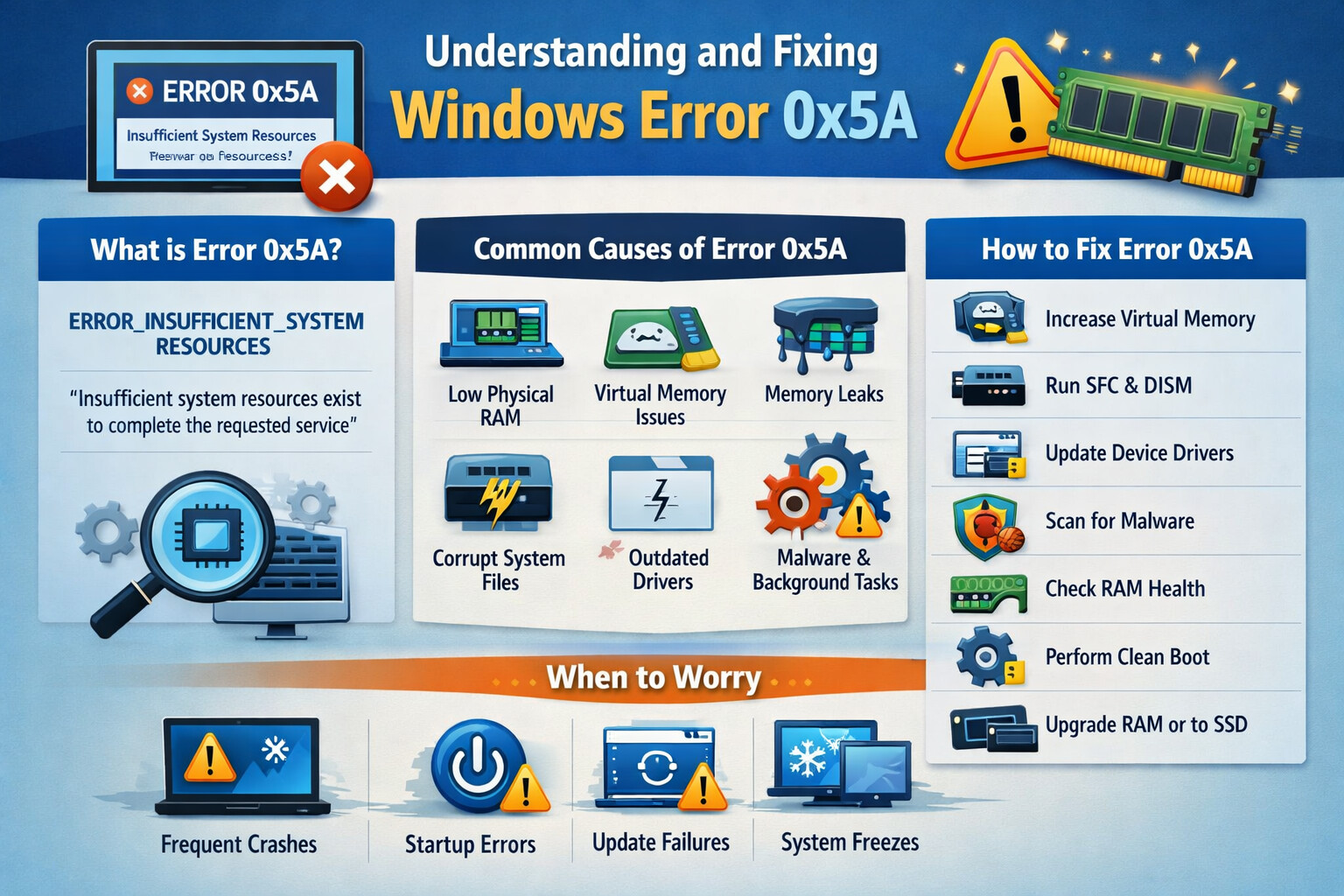
Windows Error 0x5A is a relatively uncommon but critical system error that typically appears when Windows encounters memory allocation failures, resource exhaustion, or low-level system instability. It may occur during application launches, system updates, driver installations, or while running resource-intensive tasks.
The error is commonly displayed as:
Error 0x5A: Insufficient system resources exist to complete the requested service
Understanding the underlying causes is essential, as this error often points to deeper issues within the operating system, memory management, or hardware configuration.
What Does Windows Error 0x5A Mean?
Error 0x5A corresponds to the Windows system error code:
ERROR_INSUFFICIENT_SYSTEM_RESOURCES
This means Windows failed to allocate the necessary system resources—such as memory, handles, or kernel objects—to complete an operation.
Common Scenarios Where Error 0x5A Occurs
- Launching large applications (e.g., browsers, IDEs, virtual machines)
- Installing or updating Windows
- Running legacy software on newer Windows versions
- Printer or driver installation
- System startup or shutdown
- High multitasking environments (low RAM systems)
Root Causes of Windows Error 0x5A
1. Insufficient Physical RAM
Systems with limited RAM may fail to allocate memory when multiple applications are running concurrently.
Common in:
- PCs with 2GB–4GB RAM
- Older laptops and desktops
2. Virtual Memory (Paging File) Misconfiguration
If the paging file is disabled, too small, or corrupted, Windows cannot extend memory usage when RAM is exhausted.
3. Memory Leaks in Applications or Services
Faulty or poorly written software may continuously consume memory without releasing it, eventually exhausting system resources.
4. Corrupted System Files
Damaged Windows system files can disrupt memory management and kernel operations.
5. Outdated or Faulty Device Drivers
Drivers operate at kernel level. A faulty driver can consume excessive system resources or crash memory allocation processes.
6. Malware or Unwanted Background Processes
Malware often runs hidden processes that consume RAM and system handles aggressively.
7. Registry Corruption
Incorrect registry values related to memory management, services, or drivers can cause Windows to misallocate resources.
How to Fix Windows Error 0x5A
Solution 1: Restart the System
This clears temporary memory, releases locked resources, and is often sufficient for one-time occurrences.
Solution 2: Check and Increase Virtual Memory (Paging File)
-
Press Windows + R, type
sysdm.cpl, press Enter -
Go to Advanced → Performance → Settings
-
Open Advanced → Virtual Memory → Change
-
Enable Automatically manage paging file size
-
OR set custom size:
- Initial size: 1.5 × RAM
- Maximum size: 3 × RAM
-
-
Restart the computer
Solution 3: Close Resource-Heavy Applications
- Press Ctrl + Shift + Esc
- Open Task Manager
- Sort by Memory
- End unnecessary high-usage processes
Solution 4: Run System File Checker (SFC)
-
Open Command Prompt (Admin)
-
Run:
sfc /scannow -
Wait for the scan to complete
-
Restart if repairs were made
Solution 5: Run DISM Repair Tool
If SFC fails:
DISM /Online /Cleanup-Image /RestoreHealth
This repairs the Windows image and underlying system components.
Solution 6: Update or Roll Back Drivers
-
Open Device Manager
-
Update critical drivers:
- Display adapters
- Storage controllers
- Network adapters
-
If the error started after a driver update, roll it back
Solution 7: Scan for Malware
Use:
- Windows Defender (Full Scan)
- Trusted third-party antivirus
Remove any detected threats and reboot.
Solution 8: Check Physical Memory (RAM)
- Press Windows + R
- Type
mdsched.exe - Restart and run Windows Memory Diagnostic
- Replace faulty RAM if errors are found
Solution 9: Perform a Clean Boot
This isolates third-party services that may be leaking resources.
- Press Windows + R, type
msconfig - Select Selective startup
- Disable all non-Microsoft services
- Restart and test
Solution 10: Upgrade Hardware (If Persistent)
If the system frequently encounters this error:
- Upgrade RAM (recommended minimum: 8GB)
- Replace slow HDDs with SSDs
When Should You Worry?
You should investigate urgently if:
- Error 0x5A occurs repeatedly
- It appears during system startup
- It prevents Windows updates or software installation
- The system freezes or crashes frequently
These indicate structural OS or hardware issues.
Preventive Best Practices
- Keep Windows and drivers updated
- Avoid running too many startup applications
- Maintain sufficient free disk space
- Use reputable software only
- Perform routine malware scans
Conclusion
Windows Error 0x5A is a clear signal that your system is struggling with resource management. While it may appear minor initially, ignoring it can lead to system instability, crashes, or data loss. Fortunately, in most cases, it can be resolved through memory optimization, system repairs, and proper maintenance.
If the issue persists after all software fixes, hardware upgrades—especially RAM—are often the long-term solution.
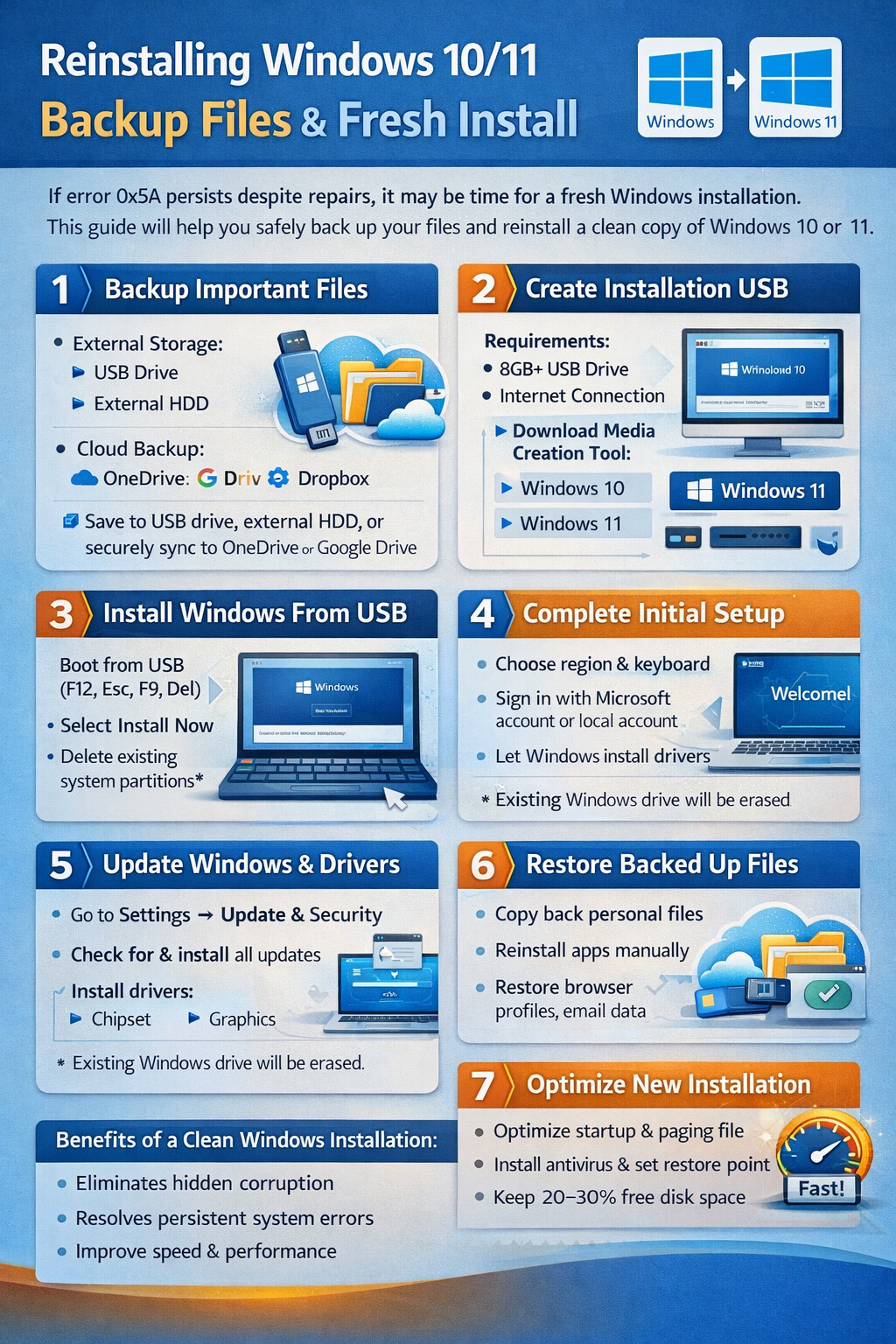
 Warning: This erases the Windows system drive completely.